
How to Customize Your Home Dashboard
Your Home dashboard shows a grid of tool cards, six to start. You choose which tools appear and in what order from Customize Home.
Open Customize Home
On Home, scroll to the bottom and tap Customize. You can also open Settings, then tap Customize Home under Account Settings, or type “dashboard” in the search box at the top of Settings.
Choose and order your tools
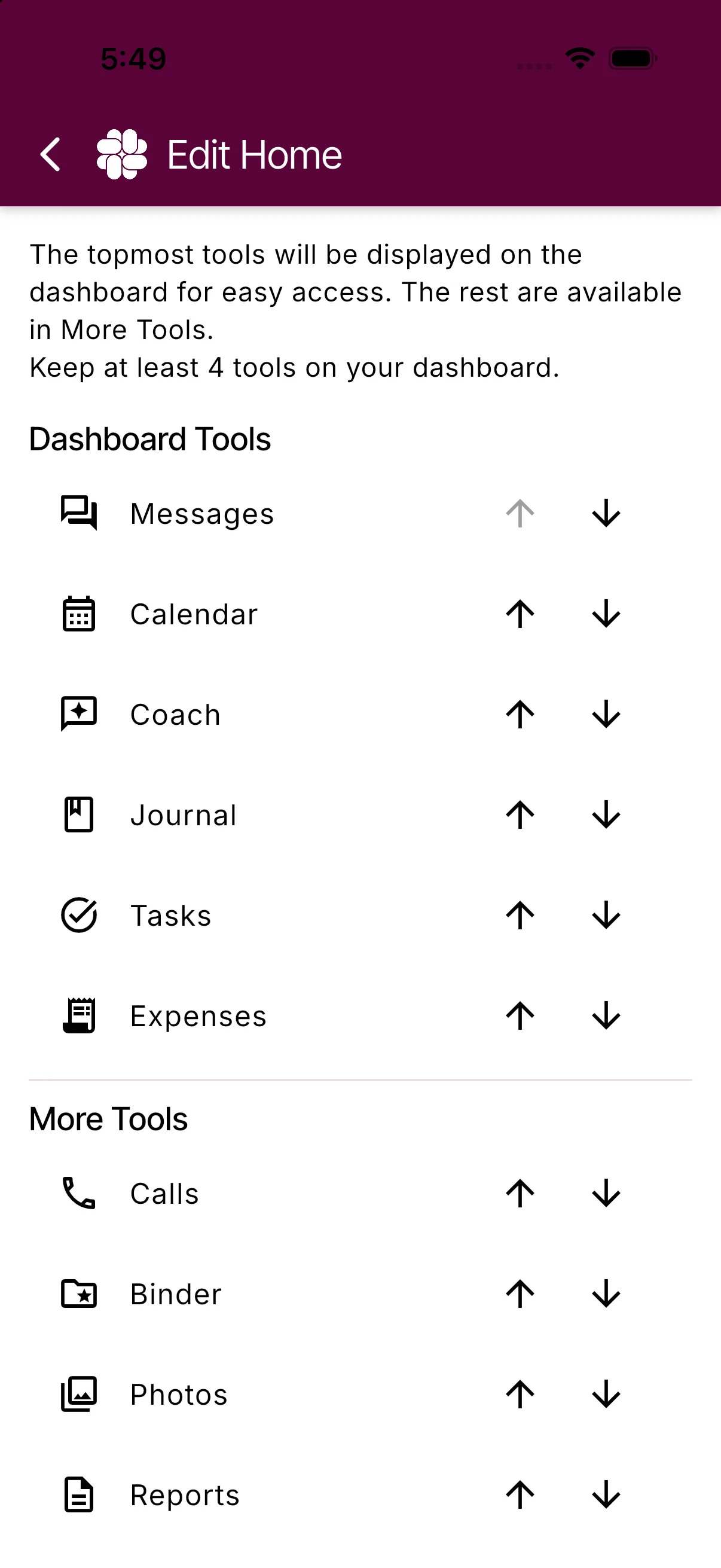
Customize Home shows one list of every tool, split by a divider:
- Dashboard Tools are the tools above the divider. They appear on Home in this order.
- More Tools are the rest. They stay one tap away on the More Tools screen.
Use the up and down arrows next to a tool to move it:
- Tap up on the first tool under the divider to add it to the dashboard.
- Tap down on the last dashboard tool to move it to More Tools.
- Keep at least four tools on the dashboard. The down arrow is disabled when only four remain.
Save or discard
Tap Back when you are done. If you changed anything, BestInterest asks Change dashboard layout?
- Confirm saves the new layout and returns to the previous screen.
- Cancel leaves without saving.
Dismissing the prompt keeps you on the screen so you can continue editing.
Restore the defaults
Tap Restore defaults to return to the original six: Messages, Calendar, Coach, Journal, Tasks, Expenses. The reset applies when you tap Back and choose Confirm.
Good to know
- The layout is saved for your account on this device only. Other devices and your coparent are not affected.
- A tool marked Unavailable keeps its place in your saved list, and Home shows a default tool there until it applies to your account again. This happens with Calls when you leave Collaborative Mode or no longer have a Boundary Line number.
- If saving fails, you will see Unable to save your Home layout. Please try again. Check your connection and retry.
Frequently asked questions
How many tools can I put on the dashboard?
As many as you like, with a minimum of four. New accounts start with six. Everything below the divider stays available under More Tools.
Do my changes sync to my other devices or to my coparent?
No. The layout is saved for your account on the device you are using. Your coparent never sees your layout.
How do I go back to the original dashboard?
Open Customize Home and tap Restore defaults, then confirm when you leave the screen.
Why is a tool listed as Unavailable?
It was on your dashboard when it applied to your account, such as Calls, but it does not apply right now. Home shows a default tool in its place until it returns.
Was this helpful?
Still need help?
Contact Support