
Why can't I attach or send photos?
Photo attachments require Connect, Protect, or Protect Plus. On those plans, you can attach photos in both Solo Mode and Collaborative Mode. Solo Mode sends attachments by MMS, so video attachments are available only in Collaborative Mode.
Add a photo in BestInterest
- Open Messages and start a new message.
- Tap Add Photos in Solo Mode or Add Photos or Videos in Collaborative Mode.
- Choose Take Photo, Choose from Gallery, or Choose from Files.
- Select the photo, finish your message, and send it.
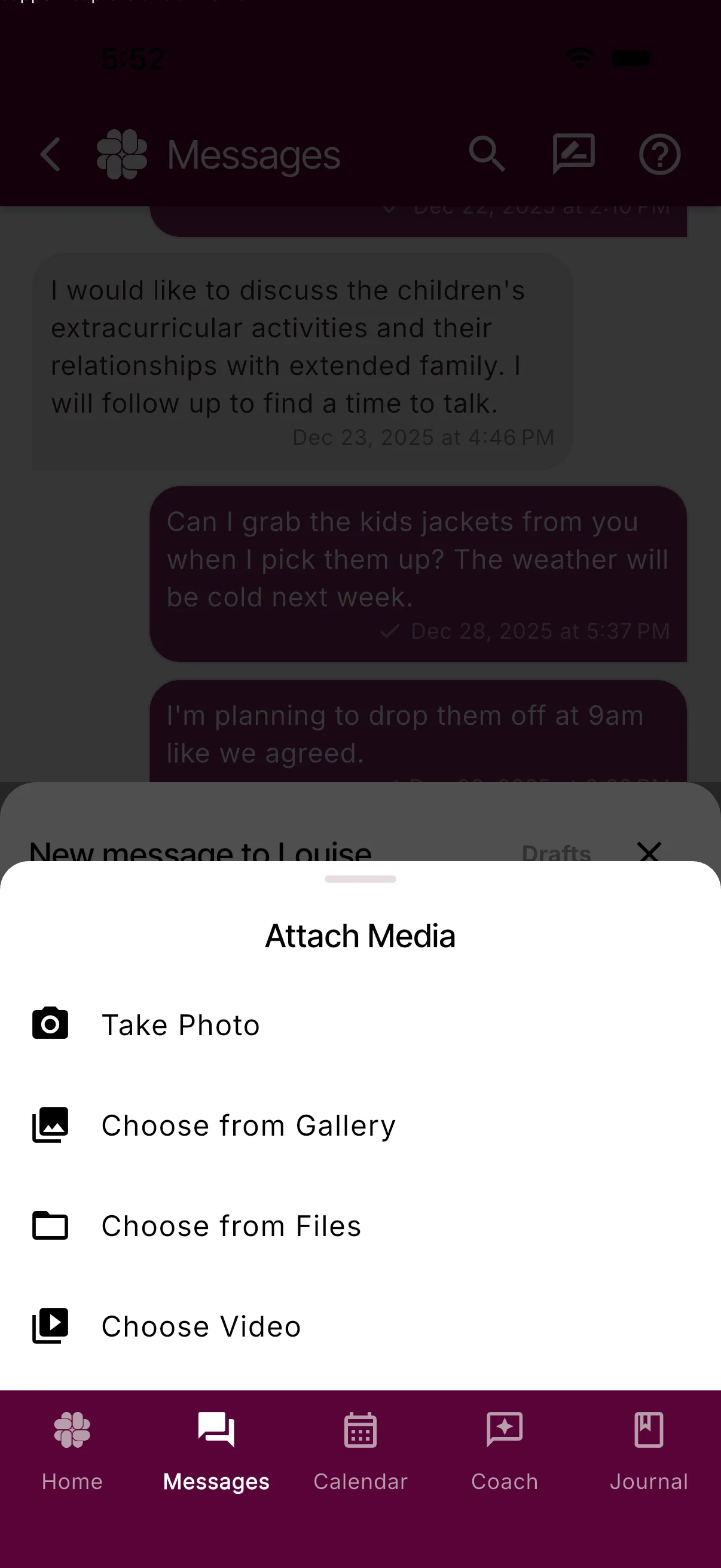
Choose from Files lets you select an image from the device’s file picker without giving BestInterest access to your photo library.
If photo permission is blocked, the composer shows Photo access is blocked. Allow photo access in Settings, then try again. Camera permission uses the same message with Camera access instead.
Allow photo access on iPhone or iPad
The exact Settings layout can vary by iOS version.
- Open the device’s Settings app.
- Tap Apps, then BestInterest. On older versions, scroll to or search for BestInterest.
- Tap Photos.
- Choose Selected Photos or All Photos.
To take a new picture from the composer, also allow Camera access for BestInterest.
Allow photo access on Android
Menu names vary by device manufacturer and Android version.
- Open the device’s Settings app.
- Tap Apps, then BestInterest.
- Tap Permissions.
- Open Photos and videos or the equivalent media permission.
- Choose the option that allows photo or media access.
Allow Camera permission as well if you want to use Take Photo.
Your privacy
BestInterest uses photo and camera access when you choose an attachment source in the message composer. Only the files you select or photos you take there are added to the message.
If the permission still appears blocked after you change it, close and reopen BestInterest and try the attachment again.
Was this helpful?
Still need help?
Contact Support