
How to Use Coparent Coach
Coparent Coach is an AI helper that lives on the Coach tab at the bottom of the app. It gives you three kinds of help: advice on a coparenting situation, a read on a message your coparent sent, and a check on a message you are about to send. Everything on the Coach tab is private to your account. Your coparent never sees it.
Ask Coach
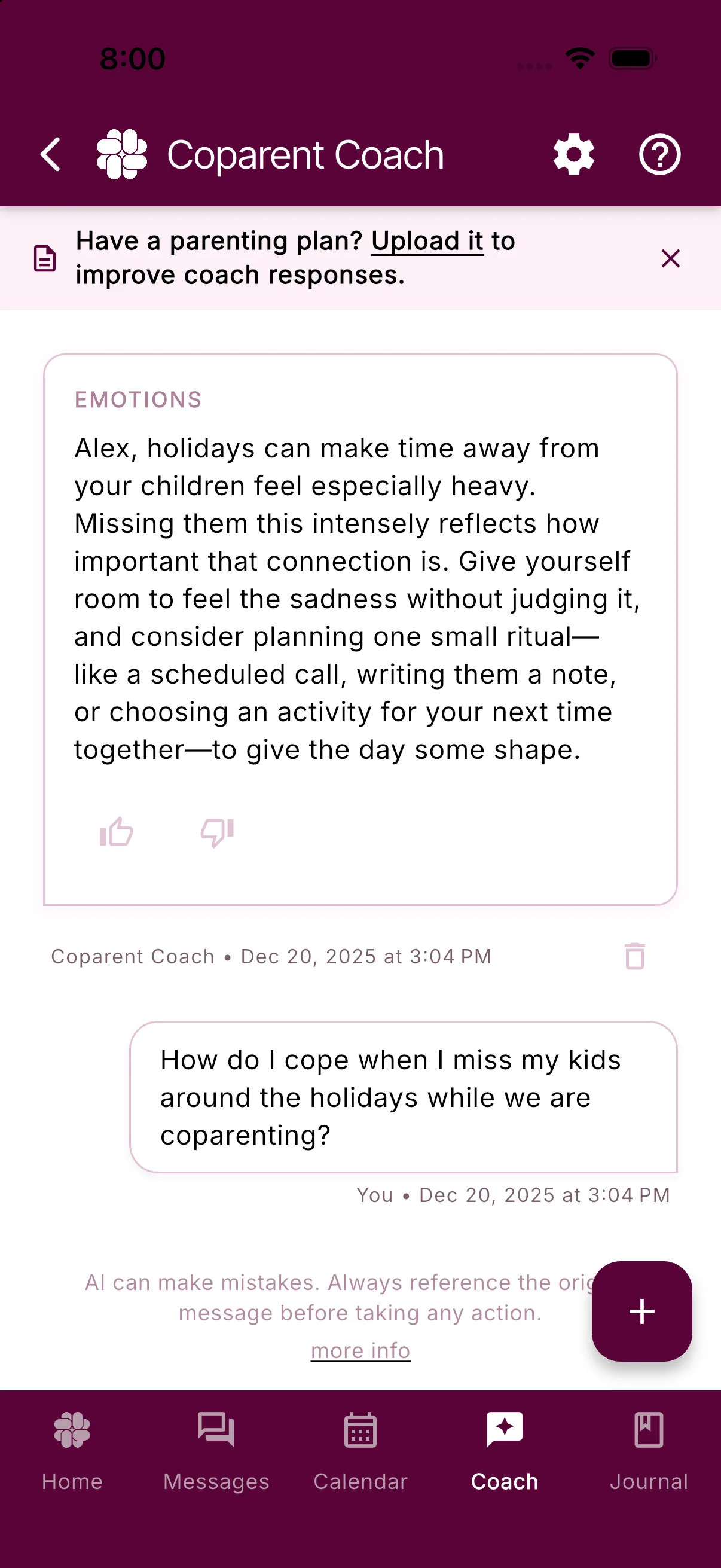
- Tap the Coach tab. Your past requests and replies appear here, newest first.
- Tap the + button (labelled Ask Coach).
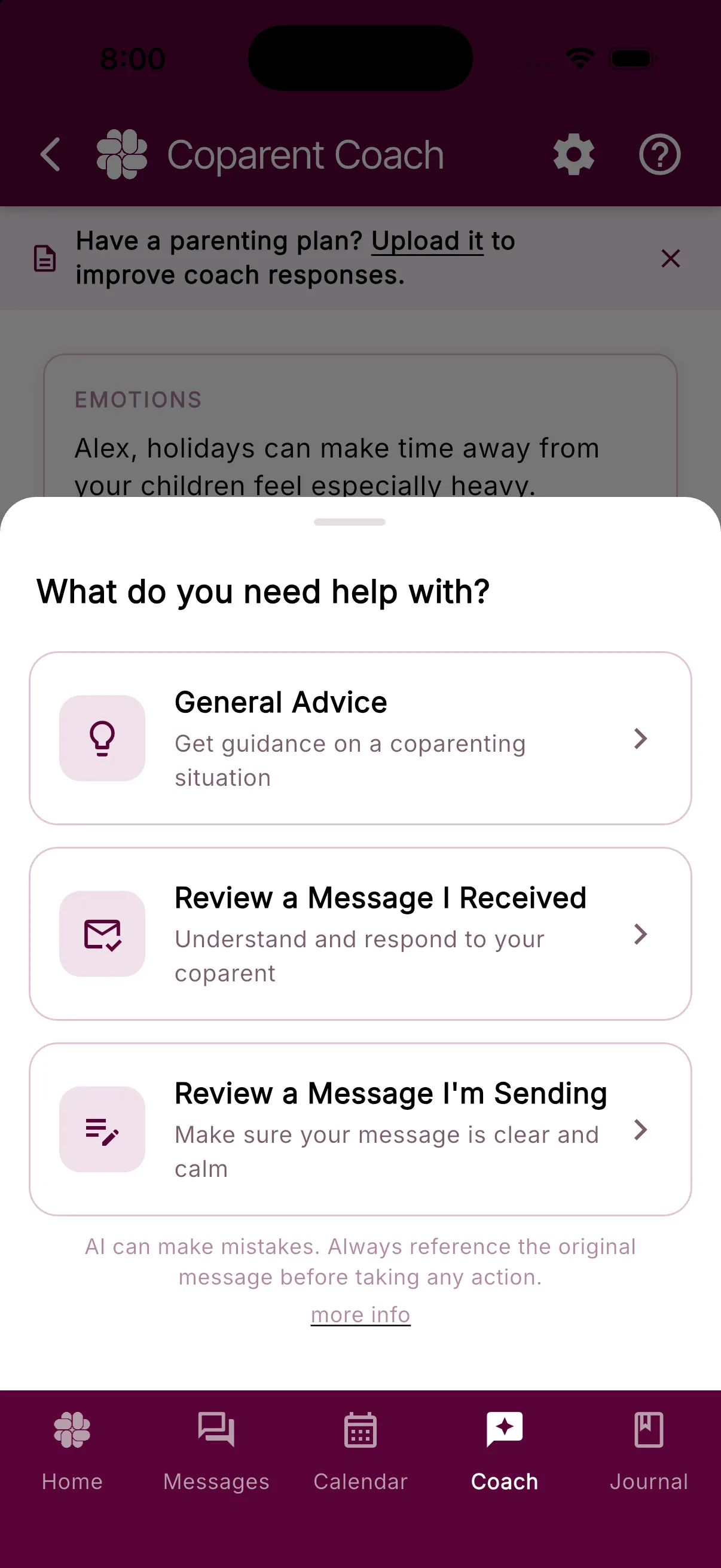
- Under What do you need help with?, choose one:
- General Advice for guidance on a coparenting situation.
- Review a Message I Received to understand and respond to your coparent.
- Review a Message I’m Sending to make sure your message is clear and calm.
- For Review a Message I Received, choose Copy and Paste or Upload a Screenshot. General Advice and Review a Message I’m Sending open the text box directly.
- Type or paste into the text box. The prompt changes with your choice: “What parenting challenge are you facing?”, “Paste the message from your coparent here…”, or “Type the message you want to send…”.
- Tap Ask Coach.
The sheet closes and the reply lands in your Coach history. While Coach works you see Coach is thinking. If a request runs longer than usual, a Still working notice tells you the reply will still arrive; you can close the sheet and keep using the app.
Pick the message or exchange you want help with rather than a whole thread. Coach already pulls in your recent BestInterest messages from the last few days, your last few Coach replies, your parenting plan if you uploaded one, and upcoming calendar events, so you rarely need to paste background.
Upload a screenshot
Screenshot review reads a chat screenshot from another app, such as text messages or email, and turns it into a Coach reply.
- Choose Review a Message I Received, then Upload a Screenshot.
- Pick the image from your photo gallery. Coach shows Preparing, Uploading, and Analyzing while it works, with a cancel option.
- Read the result in the Screenshot Analysis sheet. The same reply is saved to your Coach history.
If the image is not a conversation screenshot, Coach says so and asks for a different image. Screenshot uploads have a short cooldown after heavy use; the Upload a Screenshot option then shows Available again at a time.
Read a reply
Each reply is a card in your Coach history:
- A short header names the category Coach assigned.
- The main text explains what Coach noticed and what it recommends.
- SUGGESTION gives the approach to take.
- SUGGESTED REPLY is wording you can use. Tap the copy icon to put it on your clipboard, or tap the new-message icon to open a BestInterest message with that text filled in.
- Tap the thumbs-up (Helpful) or thumbs-down (Not helpful) icon to rate the reply. Ratings tune future suggestions.
To remove a request and its reply, tap the trash icon beside Coparent Coach under the card and confirm Delete.
Coach is a starting point, not a verdict. Read the original message before you act on any suggestion. See AI can make mistakes.
Daily limits
| Plan | Requests per day | Characters per request |
|---|---|---|
| Free | 3 | 2,000 |
| Connect | 6 | 10,000 |
| Protect | Unlimited | 10,000 |
The counter under the text box shows how much room is left. On a free account, tap it to see the Coach Paste Limit note. When you hit the daily cap, Coach shows an upgrade prompt and your count resets the next day. A reply that was cut off by the free cap shows Upgrade Now; subscribers see Ask this question again on those older replies instead.
Screenshot reviews count toward the same daily total.
Coach memory and settings
Coach memory keeps brief facts and topic summaries from your conversations so later replies fit your family. To manage it, tap the settings icon at the top of the Coach tab, or open Settings > Coach Settings under Account Settings.
- Coach Memory switch: on means Coach can use and add saved memory from your conversations, messages, and feedback. Switch it off and Coach asks whether to Keep memory for later or Erase Memory now.
- SAVED FACTS and TOPIC SUMMARIES list each entry with the date it was last confirmed or active. Tap the trash icon on an entry to remove just that one.
- Reset Memory erases every saved fact and summary. Your Coach conversations stay, and the switch keeps its current position.
Coach also improves when it knows your parenting plan. A banner at the top of the Coach tab, Have a parenting plan? Upload it to improve coach responses., takes you to Parenting Plan settings; dismiss it with the X if you do not need it.
To remove Coach history along with the rest of your account data, see How to delete your data.
Frequently asked questions
Can my coparent see what I ask Coach?
No. Coach conversations belong to your account only. Your coparent has no way to view them, even in Collaborative Mode.
How many times a day can I ask Coach?
Free accounts get 3 requests a day with up to 2,000 characters each. Connect raises that to 6 a day and 10,000 characters. Protect has no daily cap. The count resets daily.
What does Coach memory store?
Short facts and topic summaries drawn from your Coach conversations, messages, and feedback. Open Settings > Coach Settings to review each entry, remove one, reset everything, or turn memory off.
Where does a screenshot review show up?
The transcript analysis opens right away in a Screenshot Analysis sheet, and the full reply is also saved to your Coach history.
Was this helpful?
Still need help?
Contact Support