
How to Search Messages and Journal Entries
Open Messages or Journal and tap the search icon at the top of the screen. Search is available on every plan.
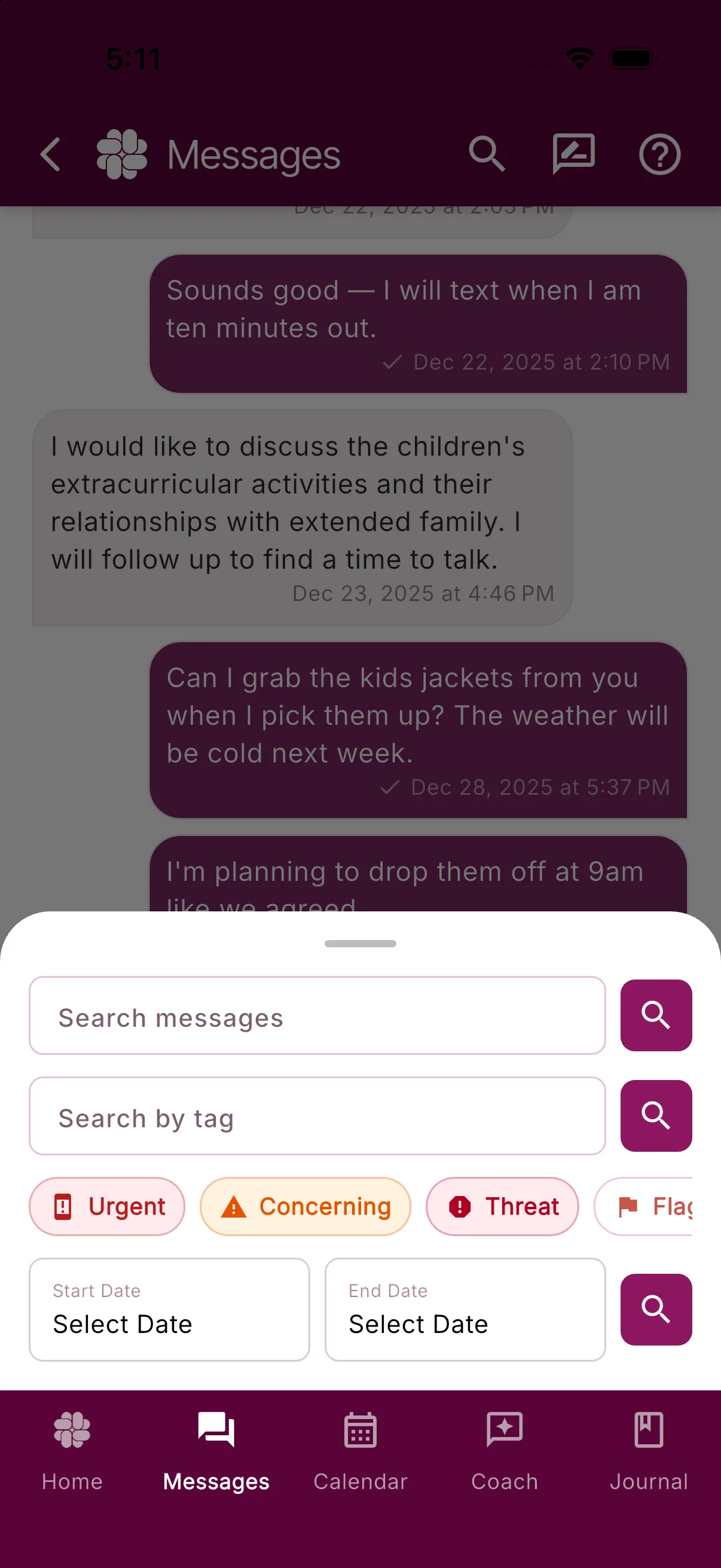
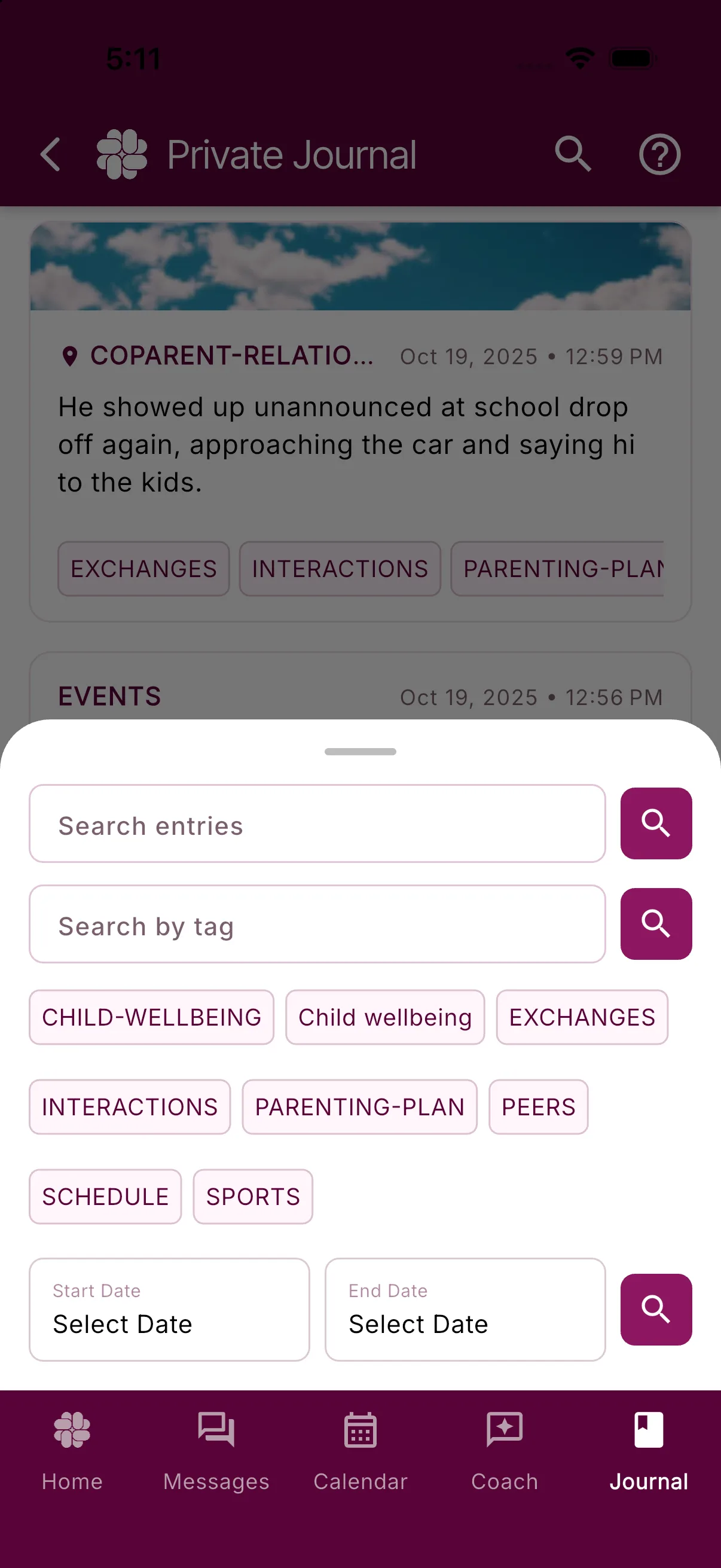
Search options on both screens
- Search messages: type two or more characters to find messages containing that exact text, regardless of capitalization. Word segments work too: searching for “sage” finds “message.” Results appear newest first, with more results available to load.
- Search entries: type two or more characters to find journal notes containing that exact text, regardless of capitalization. Word segments work too: searching for “sage” finds “message.” Results appear newest first, with more results available to load.
- Search by tag: type or pick a tag. Some tags are added automatically by Magic Tags, and you can add your own.
- Start Date / End Date: pick a range to list messages or entries sent or created in that window.
Extra filters in Messages
Messages search also has special-classification chips. Tap Urgent, Concerning, Threat, Flagged, Legal Threat, Inflammatory, or Coercive Control to list messages with that classification. These chips do not appear in Journal search.
How text matching works
Message and Journal text searches return only records containing the text you entered. Results are newest first. Searching for “rain” finds “rainy” but does not find a note about an umbrella unless it also contains “rain”.
Was this helpful?
Still need help?
Contact Support