
What do Sending, Failed, and Undelivered mean?
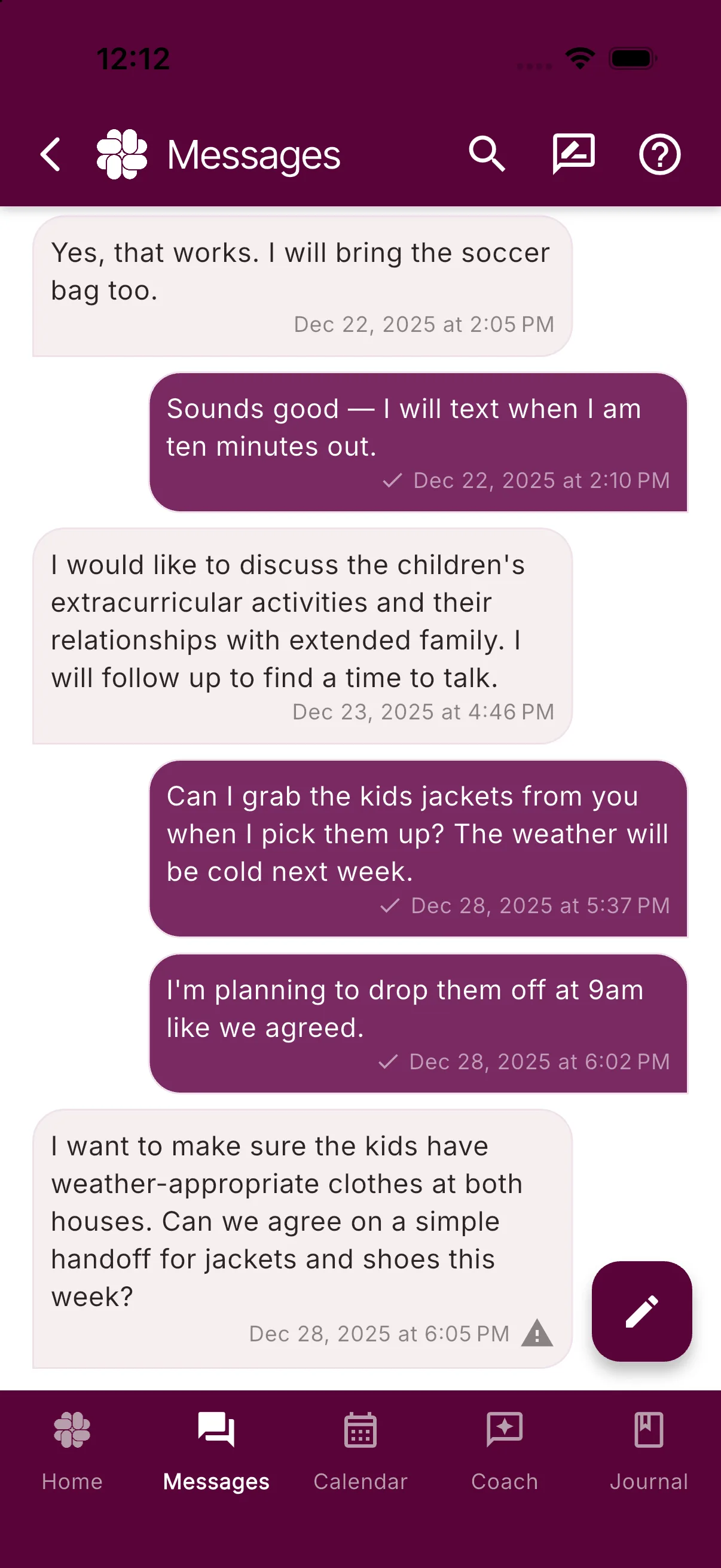
BestInterest shows a delivery status under messages you send. The status can change as the message moves through BestInterest, the carrier network in Solo Mode, or your coparent’s account in Collaborative Mode.
What each status means
- Sending: BestInterest is preparing or sending the message. Allow a few minutes for it to update.
- Sent: The message left BestInterest, but the delivery service has not confirmed delivery yet.
- Delivered: The delivery service reported that the message was delivered. For an SMS message in Solo Mode, this is a carrier status and does not prove that your coparent saw the message. Learn why Delivered is not always proof of delivery.
- Read: Your connected coparent’s BestInterest account marked the message as read. This status is generally available in Collaborative Mode.
- Failed: BestInterest could not send the message. Check your connection and, in Solo Mode, the coparent phone number under Settings > Coparent Connection. Try again once after correcting the problem.
- Undelivered: The delivery service could not complete delivery. This can be temporary, or the number or carrier may have rejected the message. Check the details above and contact support if it keeps happening.
See the delivery history
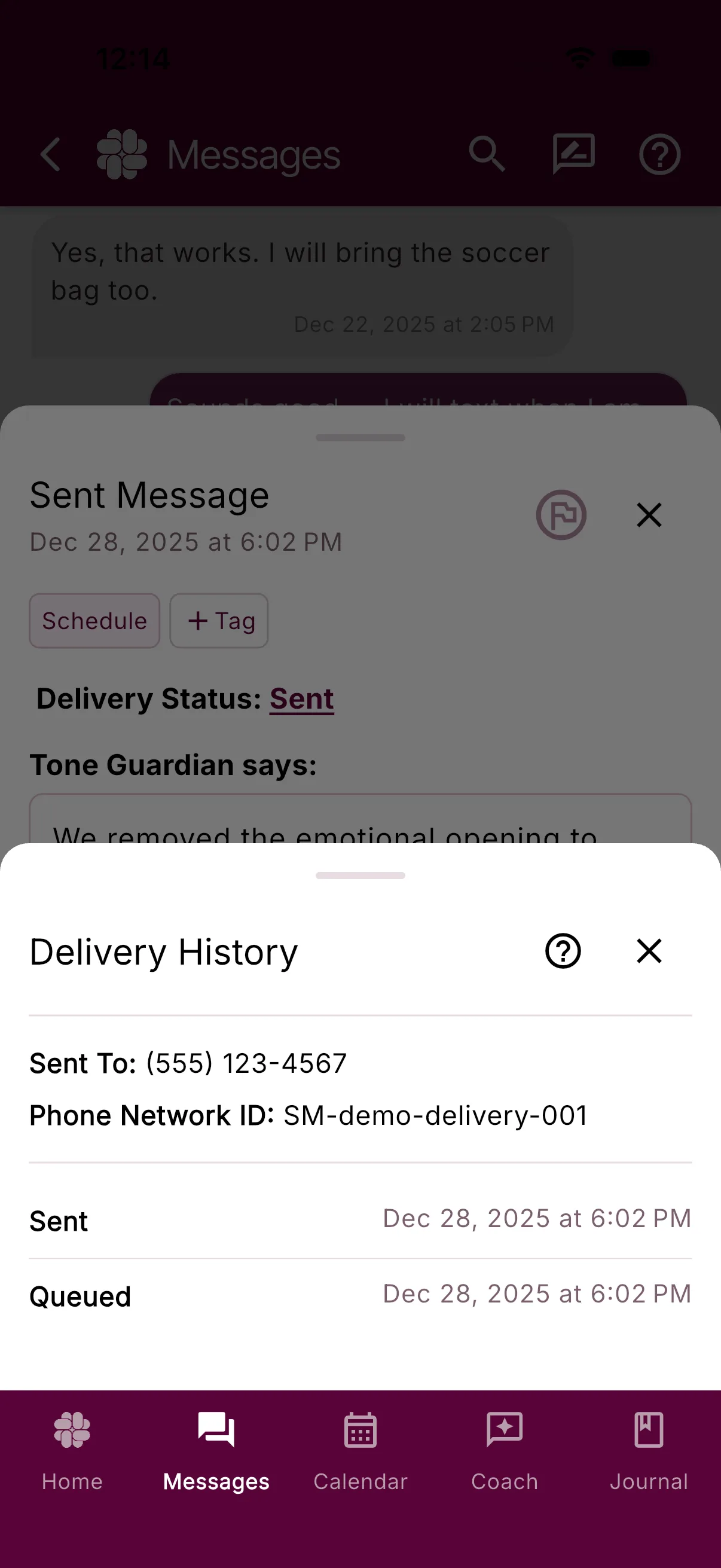
Open the sent message, then tap its underlined status in the message details. Delivery History lists the status updates and their recorded times. The history may show technical steps such as Queued or Sending before the message reaches its final state.
If a status does not update
Wait a few minutes, confirm that the app has an internet connection, and reopen the conversation. If the message remains Sending, Failed, or Undelivered, follow Why wasn’t a message delivered? for mode-specific checks.
Was this helpful?
Still need help?
Contact Support