
How do I enable geotagging for my Journal entries?
You can attach your current location to a new private Journal entry. Location is optional and records where the entry was created; it does not verify what happened there.
Add your location to a new entry
- Tap Journal in the bar at the bottom of BestInterest.
- Tap + to open New Private Entry.
- Switch on Include Location.
- If your device asks, allow BestInterest to use your location while you use the app.
- Wait for the location capture to finish, then complete the entry and tap Save Private Journal Entry.
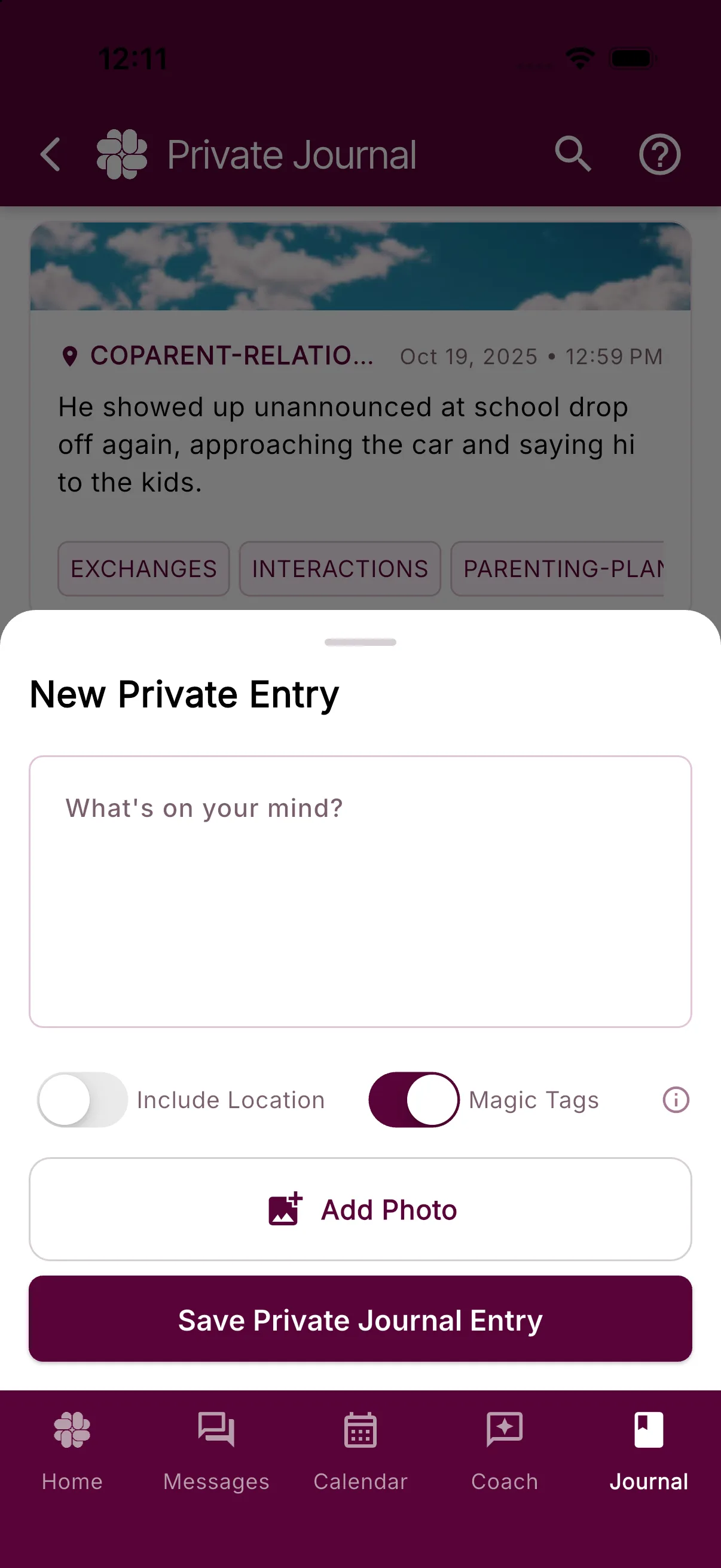
Include Location is available only while creating an entry. A saved entry’s location cannot be added or changed later.
If location permission is blocked
If permission was denied, BestInterest shows Enable Location Permissions. On iPhone or Android, tap Open Settings, open the app’s Location permission, and choose While Using the App or Allow only while using the app. Menu names can vary by operating system version.
Also confirm that your device’s Location Services are on. In a web browser, allow location for BestInterest in the browser or site settings.
When permission or location capture fails, Include Location turns off. You can fix the device setting and turn it on again when creating another entry.
How the remembered setting works
BestInterest remembers your Include Location choice on this device. If you leave it on, the next new-entry sheet automatically tries to capture your current location. Turning it off removes the location from the unsaved entry and keeps it off next time. A denied permission also keeps it off next time.
BestInterest requests one current location while the new-entry sheet is open. It does not use this feature to track your location in the background, so Always or Allow all the time access is unnecessary.
View or export a saved location
A saved entry with location has a location marker in the Private Journal list. Tap the entry, then tap its location to open Location Map.
Your Journal and its saved locations are private to your account and are not visible to your coparent. Location can appear in files you choose to generate:
- A Journal CSV includes the address, latitude, longitude, and map URL when available.
- A Journal PDF includes the saved address and coordinates and may include a View Map QR code.
Anyone you share an exported file with can see the location information it contains. See How to export your Journal entries for export steps and privacy guidance.
Was this helpful?
Still need help?
Contact Support