
How to Export Your Journal Entries
Your BestInterest journal is private. Exporting lets you save selected entries for your own records or share a copy with an attorney, mediator, therapist, coach, or another trusted professional.
Journal exports do not include messages exchanged with your coparent. To export messages, follow How to export your messages.
Open Journal Export & Reports
- Open the BestInterest app.
- On Home, scroll down and tap More Tools.
- Under Records, tap Reports, then Journal.
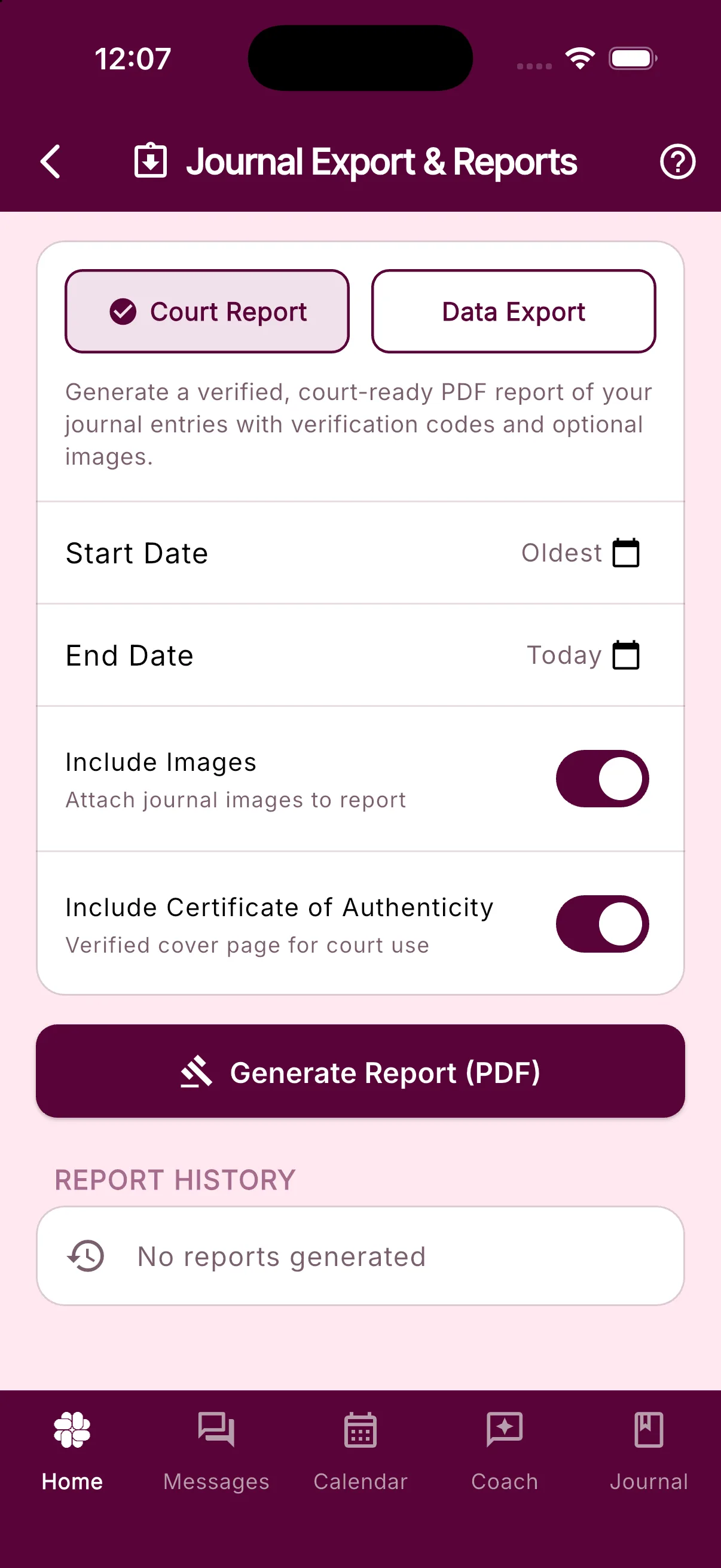
The screen is titled Journal Export & Reports.
Choose a verified PDF or a CSV export
At the top of the screen, choose the format that fits your needs:
- Court Report: Creates a verified PDF with report details. You can include journal photos and an optional Certificate of Authenticity with verification information.
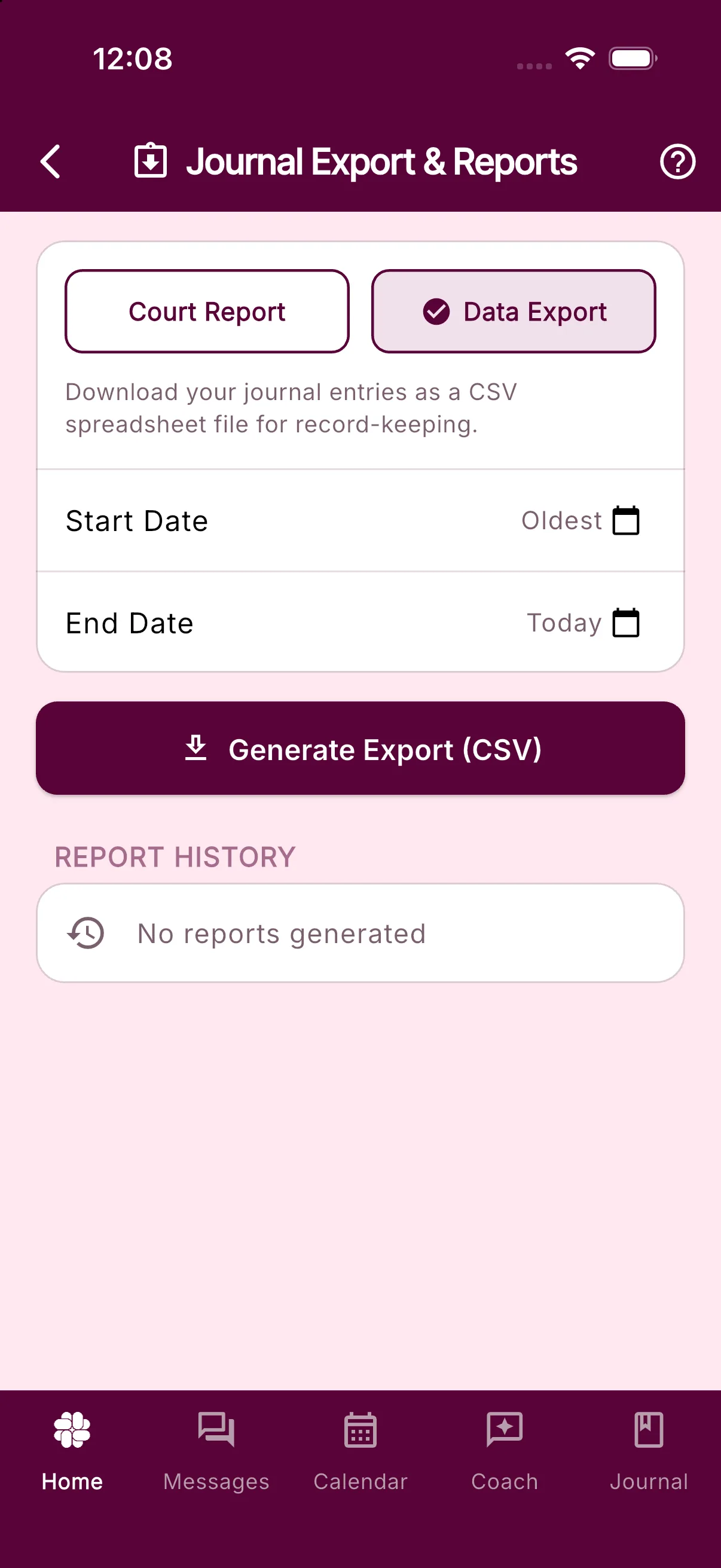
- Data Export: Creates a CSV spreadsheet for sorting, filtering, or keeping a personal backup.
The CSV Data Export is free on every plan. Court Report PDFs and the Certificate of Authenticity require Connect or a higher plan. Connect includes up to 10 verified reports per month, while Protect includes unlimited reports.
Generate your journal export
- Choose Court Report or Data Export.
- Optionally set a Start Date and End Date. Leave Oldest and Today selected to include all available entries.
- For a PDF, choose whether to turn on Include Images and Include Certificate of Authenticity.
- Tap Generate Report (PDF) or Generate Export (CSV).
If no journal entries fall within the selected dates, the app tells you there is no data to export. Try a wider date range.
Before generating a PDF, BestInterest may ask you to confirm your time zone so the report can print timestamps correctly. CSV timestamps use ISO 8601 UTC.
What the files contain
Both formats include the journal entries within your selected date range, including each entry’s timestamp and note.
The CSV includes these columns:
- Timestamp
- Note
- Address, when available
- Latitude and longitude, when available
- A map link, when location coordinates are available
The PDF includes the entry date, Journal Entry ID, note, and any available address and coordinates. When coordinates are present, it also includes a View Map QR code. If Include Images is on, the PDF embeds available journal photos; if it is off, the PDF shows the number of photos without embedding them.
When selected, the Certificate of Authenticity adds a cover page with report and verification information. It can help a professional confirm that the report came from BestInterest, but it does not guarantee that a court will accept the report as evidence. Ask your attorney or court clerk about local filing requirements.
Open, save, or share the export
CSV exports are built on your device and passed directly to the device’s share sheet. Open the file with Microsoft Excel, Google Sheets, Apple Numbers, or another spreadsheet app.
PDF reports are generated securely on BestInterest servers. A new row appears under Report History while the report is being prepared. When its status changes to Complete, tap the download icon to open the share sheet. On the web app, the PDF downloads directly.
Completed PDFs remain available in Report History for 90 days. The trash icon deletes a report and its generated PDF permanently. If a report fails or remains stuck, see Why did my report or export fail?.
Keep exported files secure
Your journal entries and report history are not shared with your coparent. CSV exports stay on your device unless you choose to save or share them. PDF reports are stored securely for the 90-day availability period described above.
After you download or share a file, its privacy depends on where you save it and who can access the destination. Journal files can contain sensitive notes, photos, and location details, so share them only with people you trust and use a secure storage location.
Was this helpful?
Still need help?
Contact Support