
How to export my messages
Use a message data export when you want a spreadsheet copy of your BestInterest message history for personal records, sorting, or secure sharing with an attorney, mediator, therapist, or another professional.
The CSV data export is available on every plan. A formatted, verified PDF is a separate Connect feature; see How to print a verified message report for use in court.
Export your messages
- On the Home dashboard, tap More Tools.
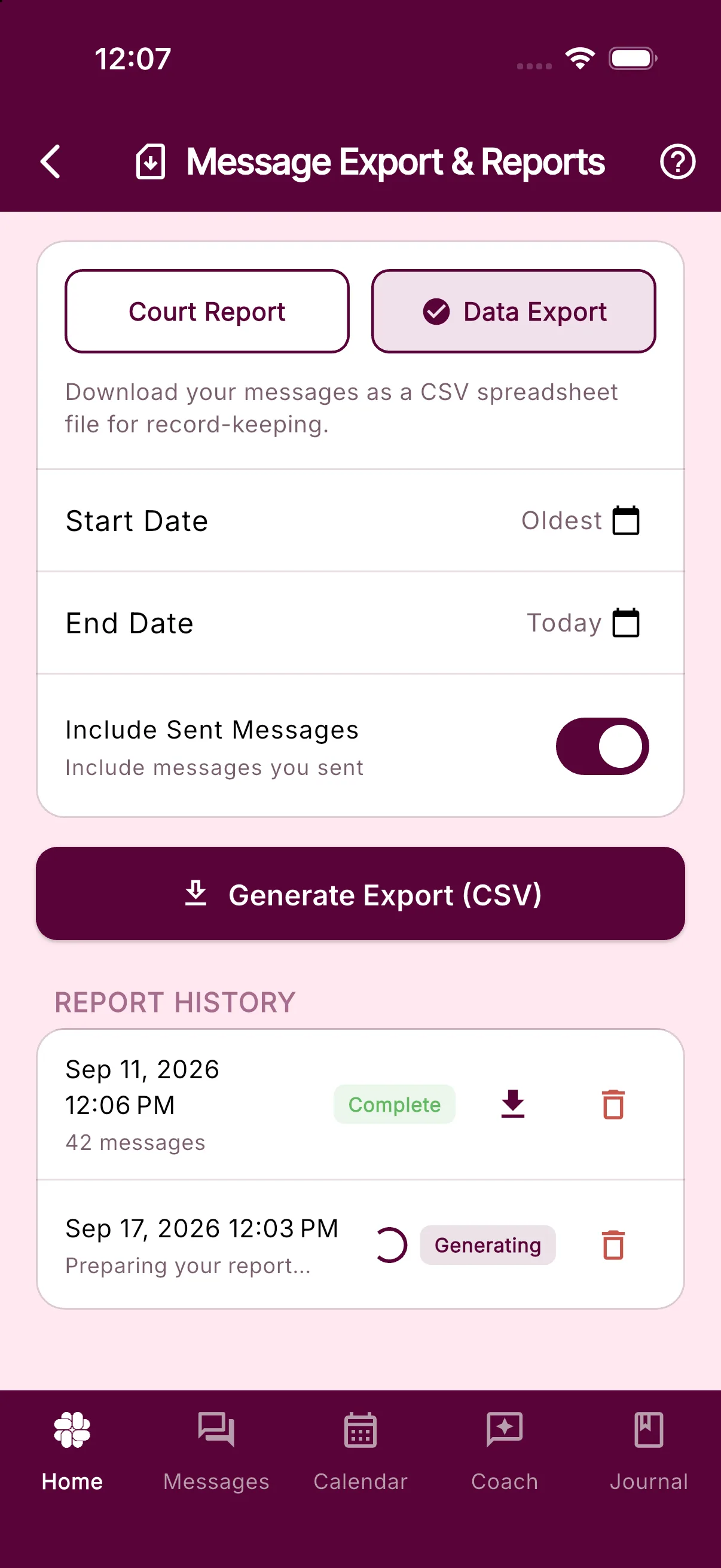
- Under Records, tap Reports, then Messages. The screen is titled Message Export & Reports.
- At the top of the screen, tap Data Export.
- Leave Start Date as Oldest and End Date as Today to include all available messages, or tap either row to choose a date range.
- To include only messages with one exact tag, enter or choose it under Filter by Tag. Leave the field empty to include messages regardless of tag.
- Leave Include Sent Messages on to include messages in both directions. Turn it off to include only messages received from your coparent.
- Tap Generate Export (CSV).
The Data Export screen shows the date range, optional tag filter, and sent-message controls before you generate the spreadsheet. Tag matching is exact after BestInterest normalizes the value to uppercase with hyphens, so school pickup selects the SCHOOL-PICKUP tag.
If no messages match the selected dates and settings, the app shows No messages to export in the selected range. Choose a wider range or turn Include Sent Messages back on and try again.
Open or save the CSV
On iOS and Android, the finished CSV opens in your device’s share sheet. Choose where to save it or which trusted app or person to share it with. In the web app, the file downloads through your browser.
Open the file in a spreadsheet app such as Microsoft Excel, Google Sheets, or Apple Numbers. Large message histories can take longer to prepare because the app reads the matching records before opening the share sheet.
What the export includes
Each exported message has:
- Its date and time in UTC
- The sender and recipient
- The original message text as sent, rather than the Message Shield filtered version
- A count of image attachments
- Its source: App, SMS, or Email
- For email messages, available subject, sender-address, forwarding, and provenance details
The file includes both sent and received messages only while Include Sent Messages is on. System and test messages are excluded. The selected tag limits which messages appear but tags are not added as CSV columns. To create a verified PDF limited to one tag or to messages you flagged, switch to Court Report and use Filter by Tag, Only Flagged Messages, or both.
Keep the exported file secure
The app creates the CSV on your device and passes it to the system share sheet, or downloads it in your browser. BestInterest does not create a server-stored copy of the generated CSV. Your underlying message history remains stored as part of the BestInterest service.
After you save or share the file, its security depends on the destination you choose. Store it somewhere protected, share it only with people you trust, and avoid posting it publicly.
Was this helpful?
Still need help?
Contact Support