
How to Generate a Verified Message Report for Court
A Verified Report turns your BestInterest message history into a dated PDF with server-side timestamps, an optional Certificate of Authenticity, and a Report ID and PIN a reviewer can use to pull the stored original. This article covers the message report. The same Reports screen also builds Calendar, Calls, Journal, Tasks, Expenses, and Coparenting History reports.
Verified Reports are a Connect feature. Connect includes 10 reports per month, counting reports that are still generating; Protect removes the cap. If you hit the cap, the app shows a limit dialog with an upgrade option instead of starting the report.
Open Reports
- On the Home dashboard, tap More Tools.
- Under Records, tap Reports.
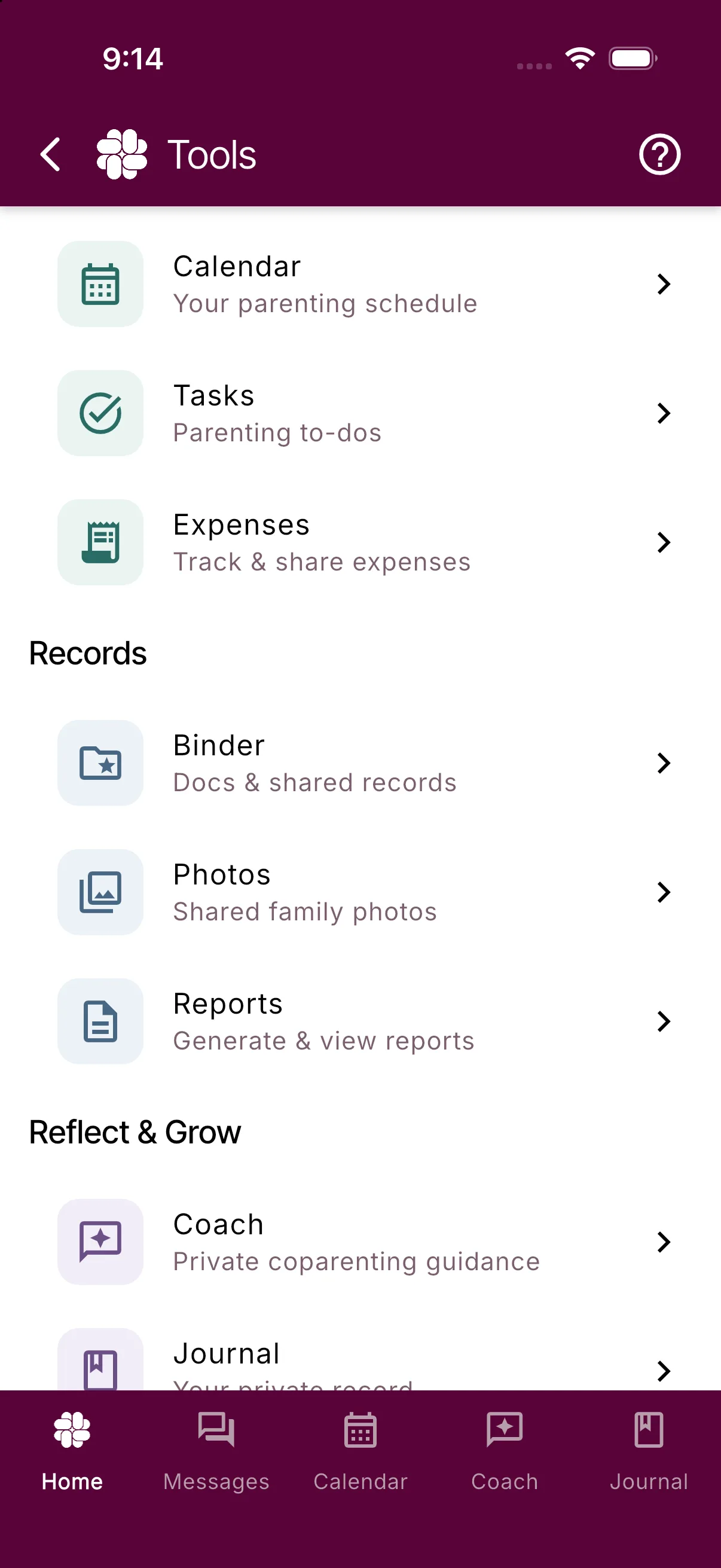
- Tap Messages. The screen that opens is titled Message Export & Reports.
The Tools screen is described tile by tile in the tools directory.
Choose what to include
The screen opens in Court Report mode. Leave that selected; the Data Export option builds a CSV spreadsheet instead of a PDF and is covered in How to export my messages.
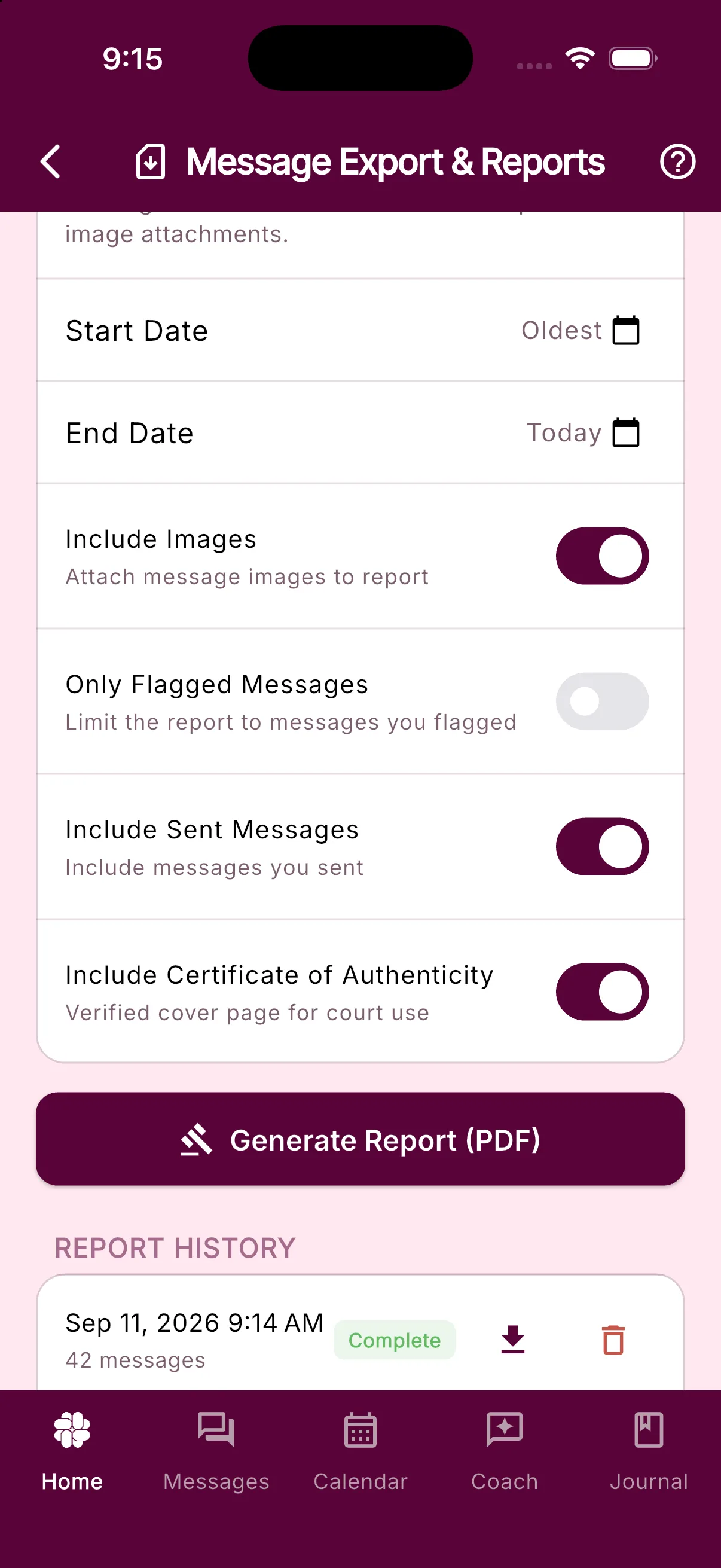
- Start Date and End Date default to Oldest and Today, which covers your entire message history. Tap either row to pick a date, or tap the clear icon to reset it.
- Include Images attaches the photos sent with each message. Turn it off to print a count of images instead of the images themselves.
- Filter by Tag optionally limits the PDF to messages with one exact tag. Choose a recent or special tag, or enter an older tag yourself. Leave it empty to include every tag.
- Only Flagged Messages limits the PDF to messages you flagged in the thread. When both filters are set, a message must have the selected tag and be flagged.
- Include Sent Messages keeps your own messages in the report. Turn it off to print only what your coparent sent.
- Include Certificate of Authenticity adds the verification cover page. It switches on by default for Connect and higher plans. Keep it on for anything you plan to file.
Generate and share the PDF
- Tap Generate Report (PDF).
- If the app cannot detect your time zone, a Set Time Zone dialog appears. Tap Set Time Zone to open your Personal Profile and save one, or tap Continue in UTC to print every timestamp in UTC.
- The app shows Report is being generated and a new row appears under Report History with the status Generating. You can leave the screen; the report keeps building on our servers.
- When it finishes, the row changes to Complete and you receive a Report Ready push notification. Tap the download icon on the row to open your device’s share sheet, then save the PDF, email it to your attorney, or print it. On the web app the PDF downloads directly.
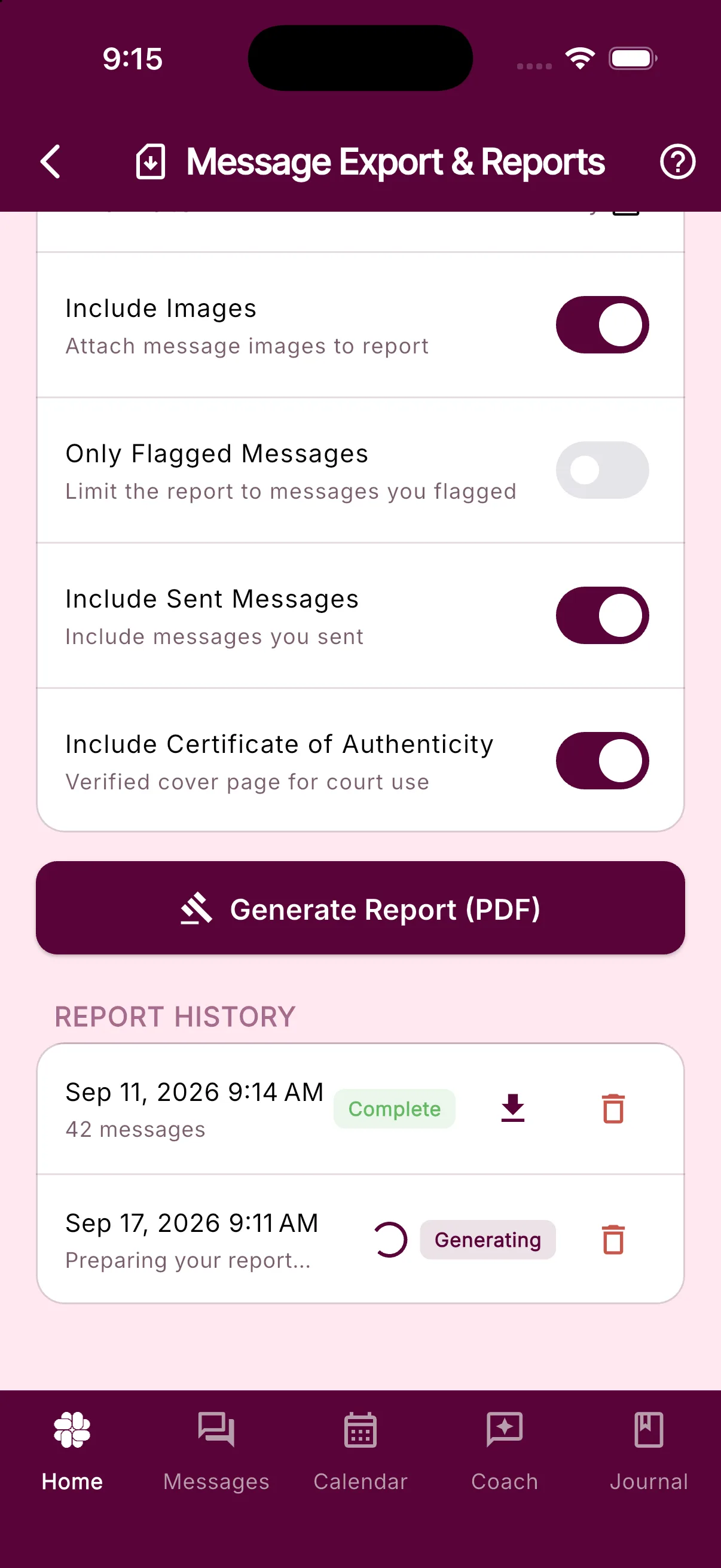
Reports in your history stay downloadable for 90 days. The trash icon on a row deletes the report and its PDF permanently. If a row shows Failed or stays on Generating, see Why did my report or export fail.
To report a single message instead of a date range, open the thread, tap the message, and tap Generate Report. The app builds a one-message PDF with images included and opens the share sheet as soon as it is ready. Message actions are described in Viewing and sending messages.
How a court can verify the report
The Certificate of Authenticity is the first page of the PDF. It prints:
- Report Details: the Report ID, when the report was generated, and who generated it.
- Verification Instructions with a QR code and the address
reports.bestinterest.app, plus the Verification PIN, an eight-character code that appears only on this page. - The date until which the stored original is available (90 days after generation).
- A Declaration of Electronic Record Keeping stating that the records were kept in the regular course of business, recorded contemporaneously by automated server processes, timestamped by the server, cannot be silently altered by users, and were extracted automatically.
A reviewer enters the Report ID and PIN on the verification site and receives a short-lived link to the original PDF held on BestInterest servers, which they can compare page by page with the copy you filed. The PIN is stored only as a hash, and repeated wrong guesses lock verification for that report. Whether a digital PDF or a printed exhibit is required varies by court, so check with your attorney.
What the report contains
Each message in the PDF prints with:
- Date in your saved time zone, From, and To.
- A Message ID, and for Boundary Line texts an SMS Provider ID and SMS Delivery Status.
- Read on, the time your coparent first opened the message, when a read receipt exists.
- The message text exactly as it was sent. If Message Shield softened a message for you, the PDF prints your coparent’s original wording, not the rewrite.
- Attached images, or a count of images when Include Images is off.
The report does not print tags on individual message rows and does not include Coach conversations or drafts. The page header lists who generated the report, the current coparent, the Report ID, the date range covered, and any applied flag or tag filter.
Timestamps print in the Time Zone saved on your Personal Profile. To change it, open Settings > Personal Profile, set Time Zone, save, and generate a new report; the settings guide shows where the Settings button lives. Reports live under your own account, so your coparent does not see your report history.
For the full list of report types and what each one is designed to show a professional, see the Verified Reports feature page.
Frequently asked questions
Which plan do I need to generate a Verified Report?
Verified Reports are a Connect feature with a cap of 10 reports per month, counting reports that are still generating. Protect removes the cap. The Certificate of Authenticity cover page is also included with Connect and above.
How does a court or attorney check that the PDF is genuine?
With the Certificate of Authenticity included, the cover page prints a Report ID and a Verification PIN. A reviewer visits reports.bestinterest.app, enters both, and receives a short-lived link to the original PDF stored on BestInterest servers. The original stays available for 90 days after the report is generated.
Why are the times in my PDF different from the times in the app?
The PDF prints every timestamp in the Time Zone saved on your Personal Profile. Open Settings > Personal Profile, set Time Zone, save, and generate a fresh report. Reports you already generated do not change.
Does the report show my coparent's original wording or the Message Shield version?
The original wording. The PDF prints the message text as it was sent, with no Message Shield rewrite, no tags, and no Coach commentary.
Was this helpful?
Still need help?
Contact Support