
How to use the Coparenting Journal
The Private Journal gives you a place to record events, activities, and reflections for your own reference. Journal entries are visible only to you unless you choose to share an export or report.
Open your journal
Tap Journal in the bar at the bottom of the app. The Private Journal screen lists your saved entries with their dates, times, tags, and indicators for attached photos or locations.
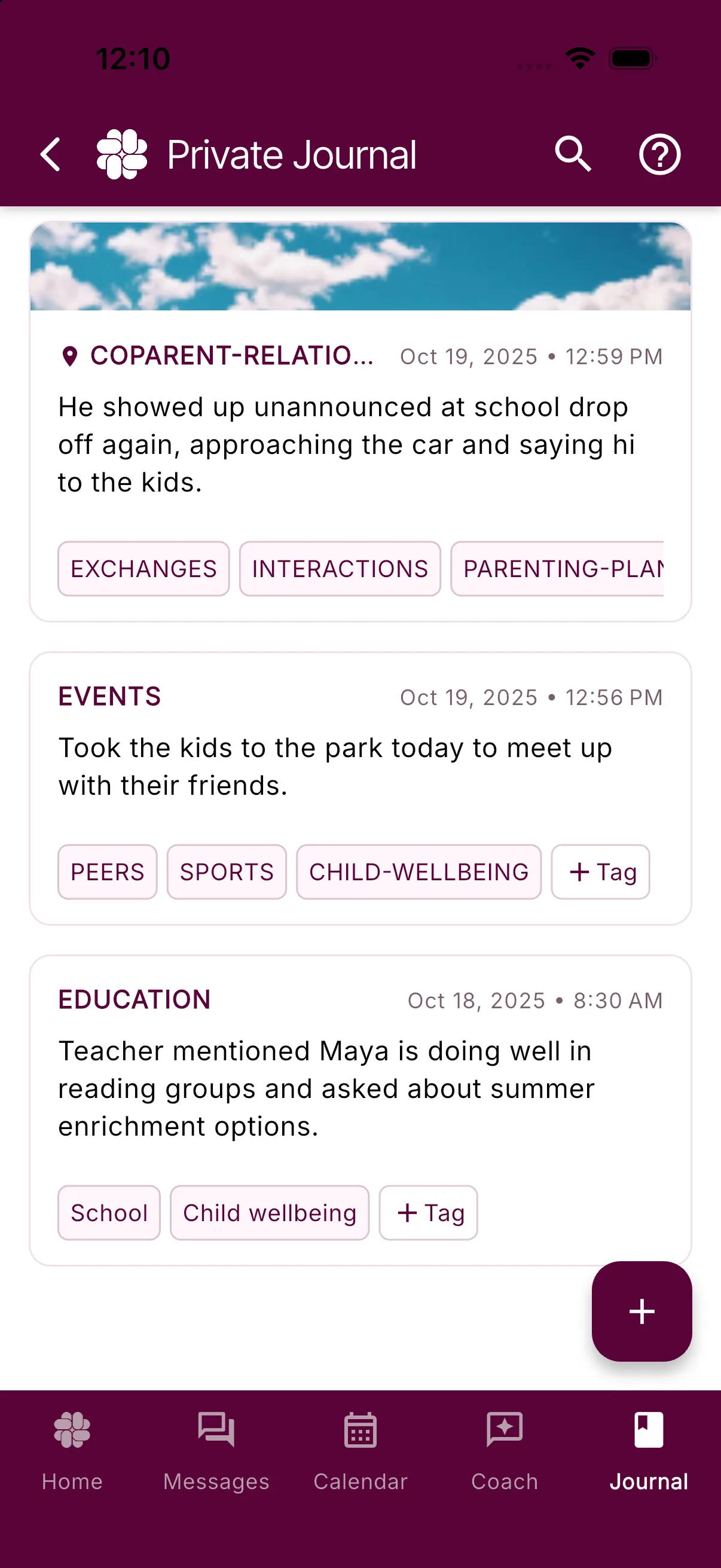
Tap an entry to read its full note and view its details. Use the search icon at the top of the screen to find entries by text, tag, or date range.
Create an entry
- Tap the + button at the bottom right of the Private Journal screen. Its tooltip reads Add private journal entry.
- In New Private Entry, type the event and any useful context in What’s on your mind?. Include who was involved in the note itself; there is no separate person or child field.
- To save where you are, switch on Include Location. BestInterest asks for device location permission and, when it can capture the location, shows the address beneath the switch. Location is optional and does not by itself verify what happened there.
- To attach pictures, tap Add Photo, then choose Take Photo or Choose from Gallery. You can add up to five photos. Photo uploads require Connect or a higher plan.
- If you have Protect or Protect Plus, leave Magic Tags on to let BestInterest suggest topic tags after saving. You can switch it off and add your own tags later.
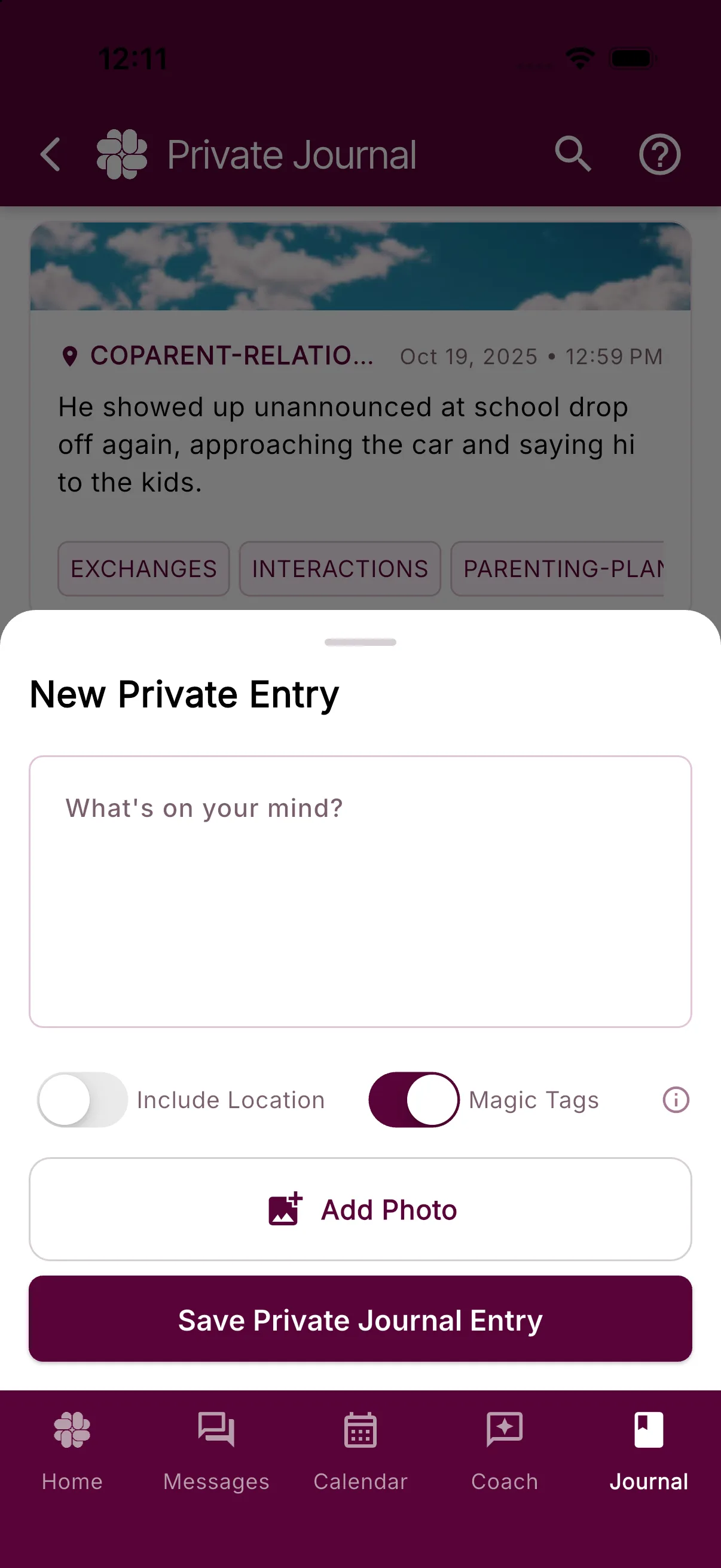
- Tap Save Private Journal Entry.
Keep entries factual and specific. Record what you observed, along with relevant dates, times, and context, and distinguish direct observations from what someone else told you.
Review, tag, report, or delete an entry
Tap a saved entry to open it. Its note, date, time, saved location, photos, and tags appear in the detail sheet.
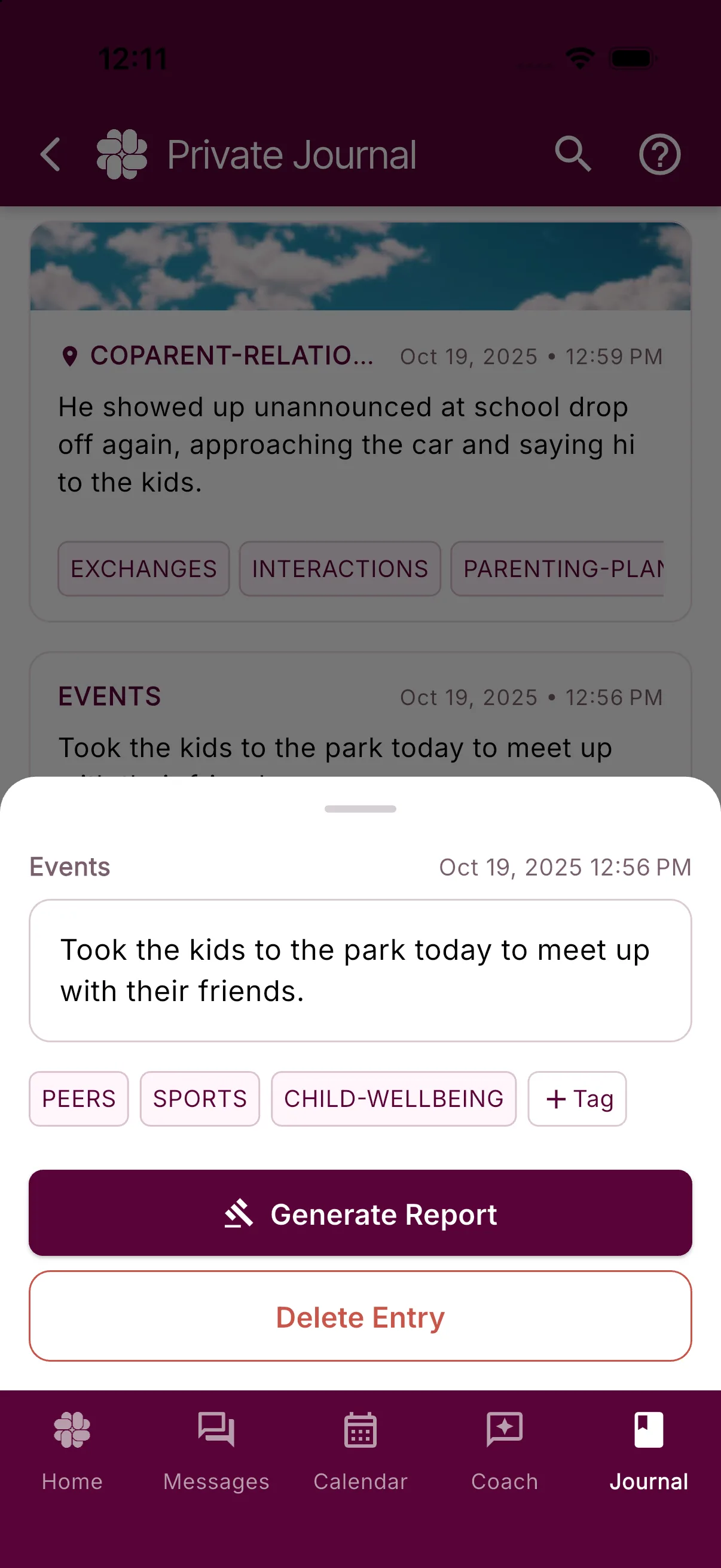
The note text cannot be changed after it is saved. You can still:
- Tap + Tag to add a manual tag. Tap an existing tag to search for it or remove it.
- Tap a location to open it on a map, or tap an attached photo to view it larger.
- Tap Generate Report to make a PDF for that single entry. Attached photos are included.
- Tap Delete Entry, then confirm Delete, to permanently remove the entry. A deleted entry cannot be recovered.
Magic Tags can miss context or choose an unhelpful label. Check suggested tags and manage them like ordinary tags. See Using Magic Tags and Manual Tags for more details.
Export several entries
For a date range or your full journal:
- Open Home > More Tools.
- Under Records, tap Reports, then Journal.
- Choose Court Report for a PDF or Data Export for a CSV spreadsheet.
- Set the start and end dates. For a PDF, choose whether to Include Images and Include Certificate of Authenticity.
- Tap Generate Report (PDF) or Generate Export (CSV).
CSV journal export is available on every plan. PDF reports and the Certificate of Authenticity require Connect or higher. Connect includes up to 10 report requests per month, including reports still being generated; Protect and Protect Plus include unlimited reports.
Generated PDFs appear under Report History when ready. A Certificate of Authenticity gives a reviewer a Report ID and verification PIN for comparing the file with the server-held original. It does not guarantee that a court, mediator, evaluator, or other recipient will accept the report. Ask your attorney or the receiving organization what format and supporting information they require.
Useful things to record
Parents commonly use journal entries for:
- Pickups, drop-offs, late arrivals, and missed exchanges
- Schedule change requests and responses
- Health, school, activity, or childcare updates
- Communication attempts and missed commitments
- Child wellbeing observations
- Cooperative moments and resolved disagreements
The journal is a record-keeping tool. It does not determine whether an event occurred or how a legal professional will interpret it.
Was this helpful?
Still need help?
Contact Support