
How to Use the Custody Binder
The Custody Binder keeps important child and household information in one searchable place. You can use it for contacts, insurance details, school information, medical information, and related files. For a feature overview and plan comparison, see the Custody Binder product page.
Add a Binder item
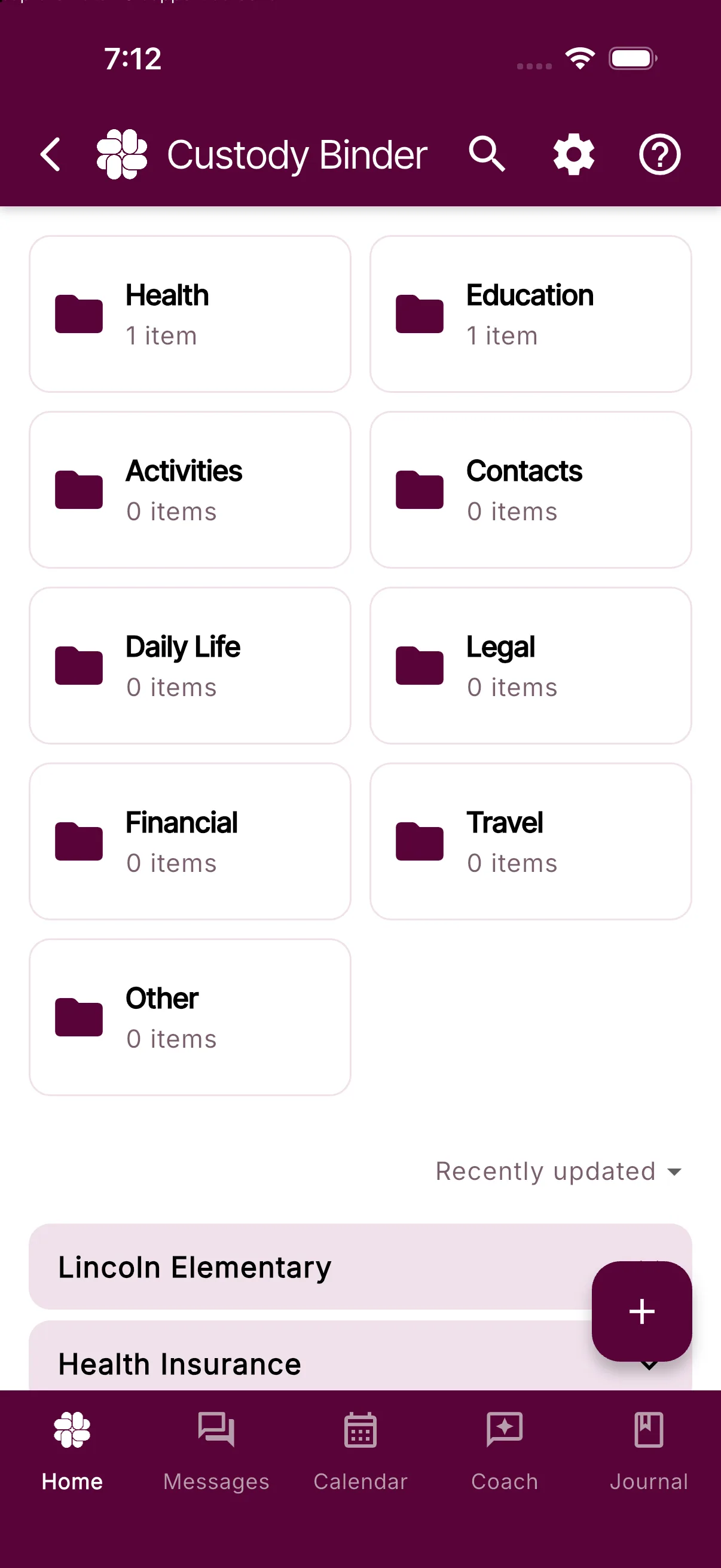
- Open More Tools > Binder and tap Add to Binder.
- Choose a built-in card type, a family custom card type, or Document to upload or scan a file.
- Choose Private or Shared. New items are private by default.
- Add a title and select a category.
- Choose the children the item relates to. All is selected by default, or you can select one or more individual children.
- Fill in the available details and add optional notes.
- If Magic Tags are available with your plan, leave them on for automatic tag suggestions or turn them off for this item.
- Tap Save.
Built-in card types include Contact, Insurance, School Details, Doctor Visit, Prescription, and Allergy. Their field names are already set up for you; you add or edit the values.
Choose what your coparent can see
- Private items are visible only to you.
- Shared items are visible to your connected coparent.
- Only the person who created an item can change it between Private and Shared.
- Your coparent can edit a shared item you created only when Allow my coparent to edit Binder items I create is enabled in Binder Settings under Settings > Custody Binder.
- Shared items have an update history so both coparents can see when the item changed.
Tags, Magic Tags, and favorites are always personal to your account. They help you organize the Binder without changing what your coparent sees.
Find an item
Tap Search in the Binder to search titles, details, and notes. You can also narrow the results by:
- Favorites
- Personal tags
- Category
- Child
- Private or Shared visibility
Tap the Favorites tag in Search to show your favorite items immediately.
Plan access and Selected Binder PDFs
Manual Binder items and Selected Binder PDF exports are included on the Free plan. When you create a Selected Binder PDF, you choose the items to include. The PDF contains their current details, your personal tags, and an attachment index; original attached files remain separate.
Connect and higher plans add file uploads and custom card types. You can choose a file already on your device, take a photo, pick an image from your photo library, or scan a document.
Protect and higher plans add optional Binder Magic Tags. Magic Tags suggest private organizational tags for an uploaded file. They do not extract facts into Binder fields, and the suggestions are not shared with your coparent.
Edit or manage an item
Open an item or use its menu to see the actions available to you. Depending on the item and your permissions, you can:
- Edit its title, category, children, details, or notes
- Add or open an attached file
- Add personal tags or mark it as a favorite
- Make it Shared or Private
- View update history
- Delete it
Custom card types
Connected families can create reusable card types in Binder Settings under Settings > Custody Binder, or from Add to Binder > Manage Card Types. A custom card type appears in the Add to Binder menu for both you and your coparent.
Custom card types are a Connect feature. Existing family card types remain visible in the menu, and BestInterest will show the plan prompt if your current access does not include using or managing them.
Older documents in the Binder
Older Shared Docs are carried forward automatically. BestInterest migrates eligible files into regular shared Binder items. After migration, you can edit or delete a document you own; a document created by your coparent follows the same shared-editing permissions as other Binder items. If a document has not yet been migrated, choosing Edit prepares it for editing. Preserved frozen snapshots stay read-only.
New Binder items require a category, and editable items let you update their category and child selection.
Frequently asked questions
What Custody Binder features are included on each plan?
Manual Binder items and Selected Binder PDF exports are included on Free. File uploads and custom card types require Connect or higher. Optional Binder Magic Tags require Protect or higher.
Can my coparent see a private Binder item?
No. Private Binder items are visible only to you. A shared item is visible to your connected coparent.
Are my Binder tags and favorites shared?
No. Tags, Magic Tags, and favorites are personal organization tools and are not shared with your coparent.
Can I change an item's category or children?
Yes, if you have permission to edit the item. Open it, choose Edit, and update its category or child selection.
What happens to older Shared Docs?
Older Shared Docs are carried into the Custody Binder and eligible files are migrated into regular shared Binder items. You can edit or delete documents you own; documents created by your co-parent follow the Binder's shared-editing permissions. Preserved frozen snapshots stay read-only.
Was this helpful?
Still need help?
Contact Support