
Message Shield Settings
Message Shield reviews incoming messages and presents the child-focused content while keeping the original wording available. Message Shield is included with Protect and Protect Plus.
Open Message Shield settings
Open Settings > Message Shield.
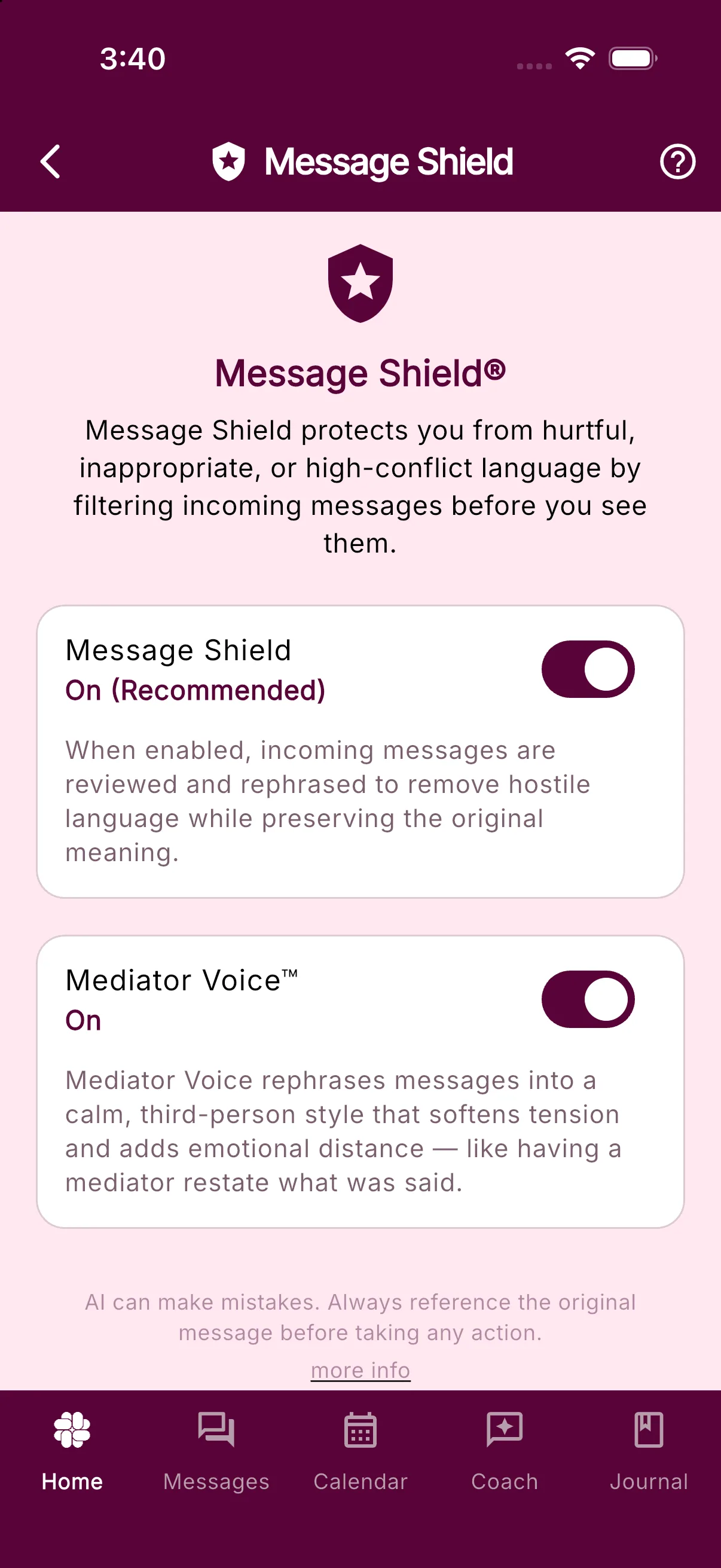
Turn Message Shield on or off
Use the Message Shield switch at the top of the screen. When it is on, incoming messages are reviewed and hostile or inappropriate language can be filtered before you see it.
To stop filtering, switch it off and confirm Turn off Message Shield?. New messages then appear in their original form.
Use Mediator Voice
With Mediator Voice on, Message Shield rephrases your coparent’s messages into a calm, third-person style, like a mediator restating what was said. The Mediator Voice switch appears only while Message Shield is on.
Choose Summary or Full detail
When Mediator Voice is on, use Message detail to choose how much safe content its rewrite includes:
- Summary (default) focuses on requests, decisions, boundaries, logistics, safety or medical information, and the context you need to understand or act. It condenses repetition, pressure to justify, and other commentary that does not require action.
- Full relays every non-harmful point in the calm, third-person Mediator Voice style.
Messages reviewed with Summary are labeled Message Shield Summary when you open them. Changing the setting affects incoming messages reviewed after the change; it does not rewrite messages already reviewed.
If you turn Mediator Voice off, the Message detail control is hidden and Message Shield preserves every safe point without the third-person rewrite. Your Summary or Full choice stays saved for the next time you turn Mediator Voice on.
View the exact original
You can always see your coparent’s exact wording. Open the message and look under Original Message.
By default, a filtered original is hidden behind Tap to view original message. Tap that prompt only when you are ready to reveal it.
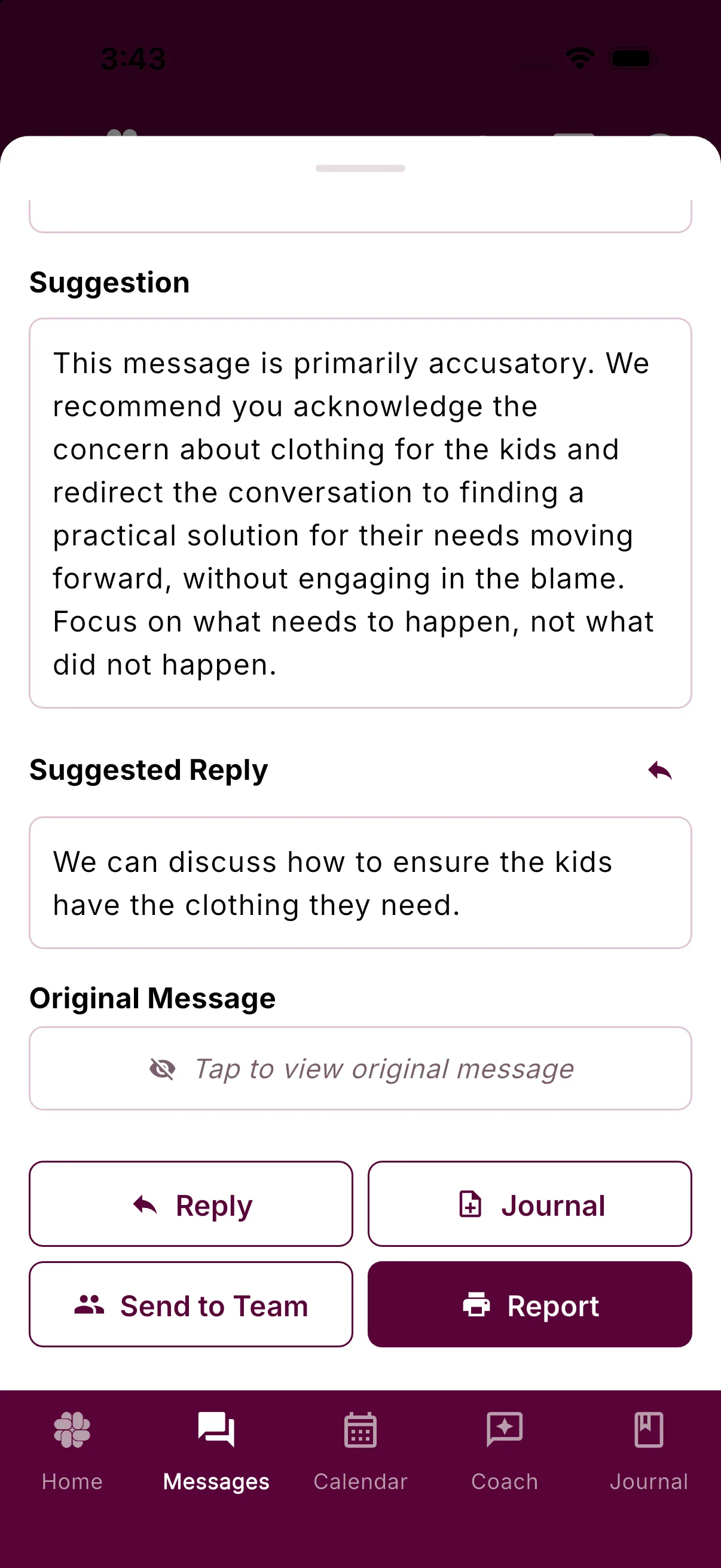
To show original wording immediately instead, open Settings > Emotional Safety and turn off Hide Original Message.
Protect forwarded email
Message Shield for Email is available with Protect in BestInterest version 3.2 or higher. Open Settings > Communication Settings > Message Shield for Email to create a private forwarding address and bring incoming coparent email into your private timeline. BestInterest does not email your coparent, and imported email remains private to you in both Solo Mode and Collaborative Mode.
See Message Shield for Email: Setup and Troubleshooting for mailbox verification, Gmail forwarding, manual forwards, status messages, and reset instructions.
Learn more about Message Shield.
Was this helpful?
Still need help?
Contact Support