
How to Use the BestInterest Home Dashboard
The Home dashboard is the first screen you see after signing in. It shows what needs your attention, gives one-tap access to the tools you use most, and opens the rest of BestInterest through More Tools.
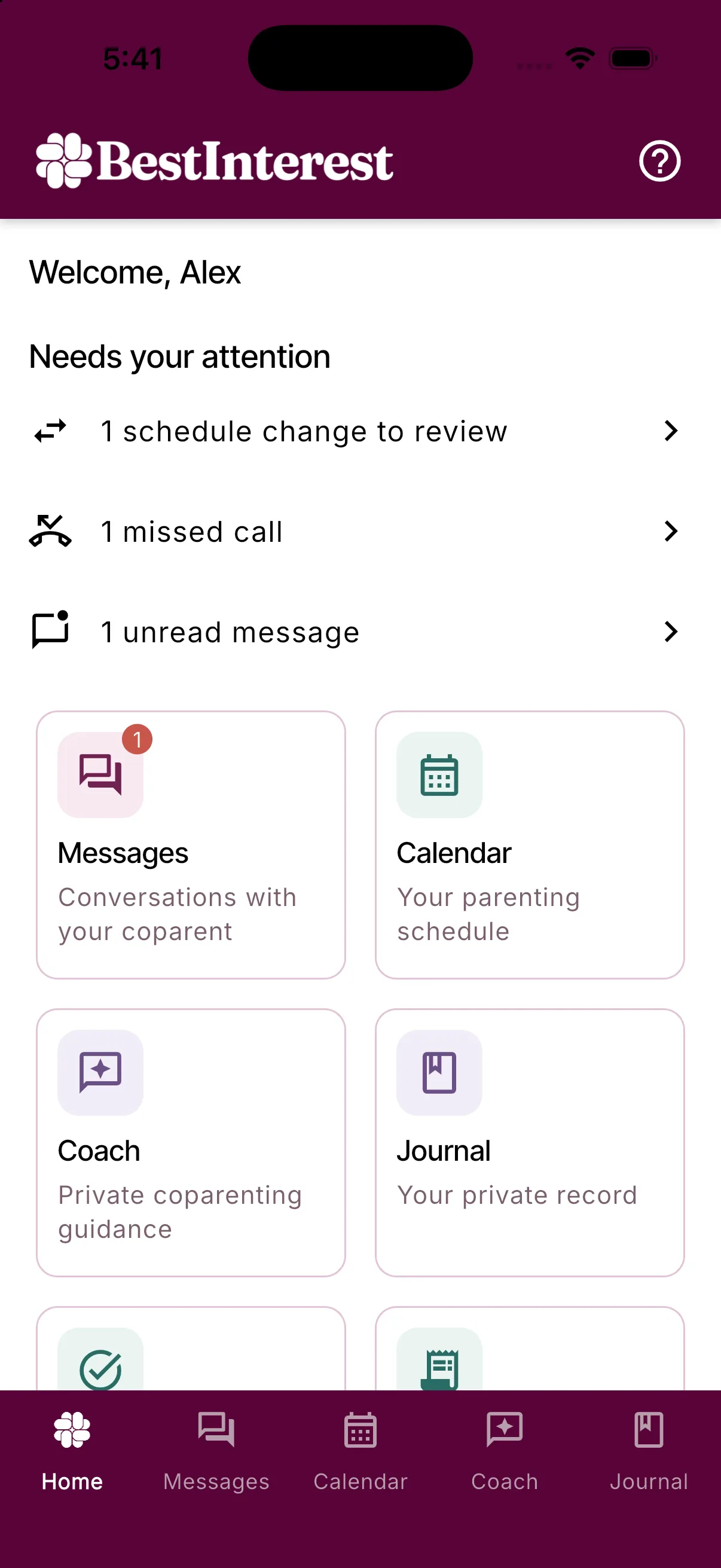
What is on the dashboard
From top to bottom, Home shows:
- Welcome with your first name.
- Needs your attention, a short list of items waiting on you: schedule changes to review, missed calls, and unread messages. Tap a row to open it. The section is hidden when nothing is waiting.
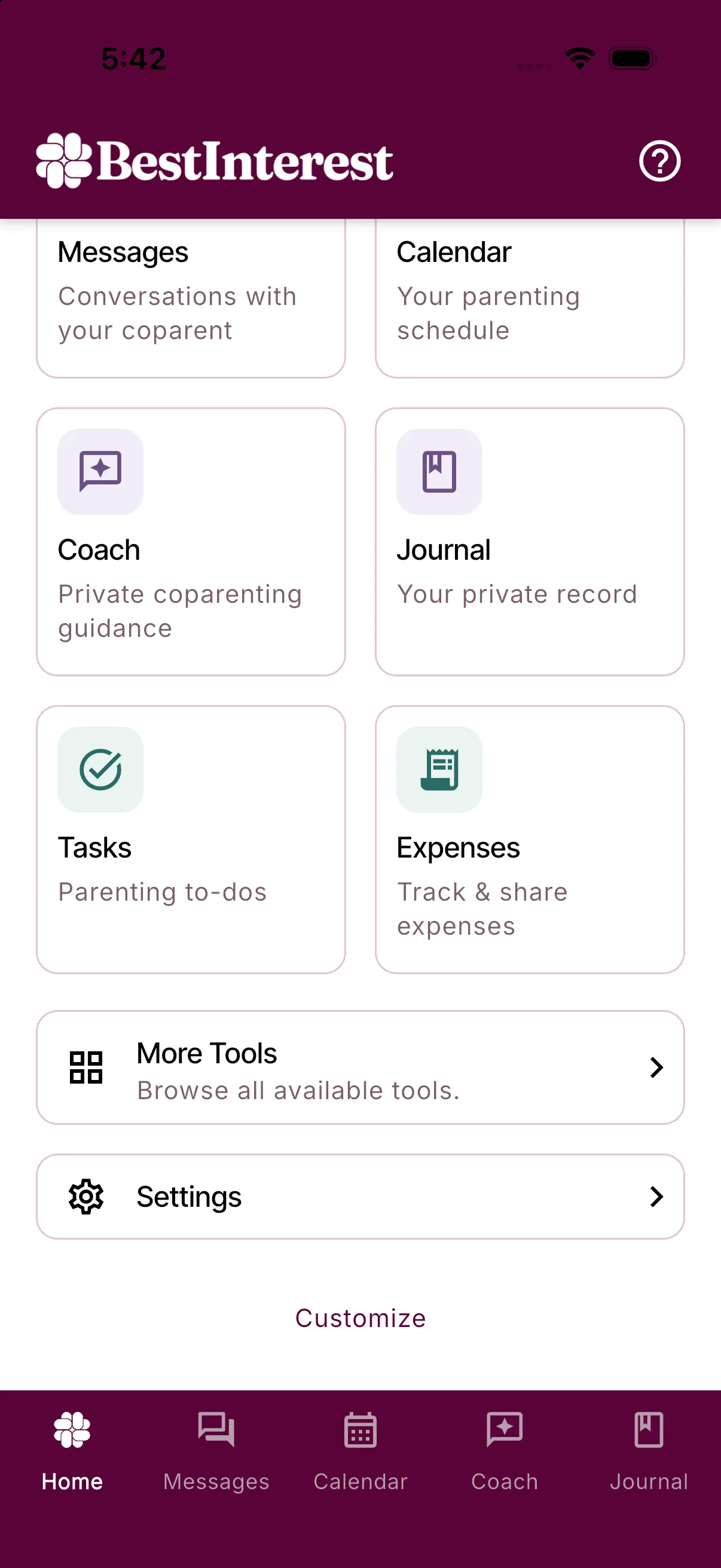
- Your dashboard tools, a grid of cards. New accounts start with six: Messages, Calendar, Coach, Journal, Tasks, and Expenses. Tap a card to open that tool. A number on a card shows unread messages or missed calls.
- More Tools, which opens the full Tools screen.
- Settings.
- Customize, which opens the dashboard editor.
To change which tools appear on the dashboard, or their order, see Customize your Home dashboard.
The bottom navigation bar
Five tabs stay visible on every main screen: Home, Messages, Calendar, Coach, and Journal. Tap Home at any time to return to the dashboard.
Finding everything else
Tap More Tools to open the Tools screen. It lists every tool in BestInterest by group, followed by resources, links about BestInterest, support options, and a Settings button. See All the tools in BestInterest for the full list and what each tool does.
Common destinations:
- Settings: the Settings button under your dashboard tools. See Where to find every setting.
- Subscriptions: More Tools > Your Subscription, or Settings > Manage Subscription.
- Binder, Photos, and Reports: More Tools, under Records.
- Stats: More Tools, under Reflect & Grow.
- Contact Support and the Help Center: More Tools, under Support.
Why some tools are missing
BestInterest only lists the tools that apply to your setup:
- Calls appears when you are in Collaborative Mode or have a Boundary Line number.
- Some tools depend on your plan. A tool you can open may still ask you to upgrade for certain actions.
- Your dashboard layout is saved on your device for your account. Signing in on another device shows the default tools until you customize that device too.
If your coparent sees a different dashboard, nothing is missing from your account. Each parent chooses their own dashboard, and your account modes may differ.
Get help
Tap the Help icon at the top of the Tools screen for a guide to that screen, or open More Tools and choose Contact Support or Help Center under Support.
Frequently asked questions
Where did the tiles for Binder, Photos, Reports, Stats, Guide, and Support go?
They moved to the More Tools screen. Tap More Tools below your dashboard tools to open every tool, resource, and support option.
Can I choose which tools appear on my dashboard?
Yes. Tap Customize at the bottom of Home, or open Settings > Customize Home, to pick and order the tools shown on the dashboard.
What does Needs your attention show?
Schedule changes waiting for your review, missed calls, and unread messages. Tap a row to go straight to that item.
Why does my coparent's dashboard look different from mine?
Each parent chooses their own dashboard tools on their own device, and some tools only appear in Collaborative Mode or with Boundary Line.
Was this helpful?
Still need help?
Contact Support