
Parenting Calendar Settings: Schedules, Exchanges, and Sharing
Create a parenting schedule
To set up, add or create a custody/parenting schedule, open Settings > Parenting Calendar and tap + beside PARENTING SCHEDULES. Choose a rotation, set the start date and the parent who starts, then tap Preview Schedule. Review the dates and handoffs before confirming the displayed action. A Solo schedule is added to your private Calendar; a Collaborative proposal waits for your coparent’s approval while your current schedule stays active.
Parenting Calendar is the settings screen behind the Calendar tab. It holds your custody rotation, the places where exchanges happen, the default exchange time, links for other calendar apps, and the switches that decide what your coparent can add or propose. Children and the parenting plan itself live elsewhere; see How to set up your children, parenting plan, and custody schedule.
Open the Parenting Calendar settings
- On Home, tap Settings below your dashboard tools.
- Under SHARED LOGISTICS, tap Parenting Calendar.
You can also tap the Settings icon at the top of the Calendar tab. If Settings is hard to find, read Where to find every setting in BestInterest.
The screen is a list of uppercase sections. Available sections depend on your mode and connection. Solo Mode supports private schedules and private parenting-time changes. Connected Collaborative Mode adds shared exchange locations, requests, approvals, and shared history.
If you just switched from Solo to Collaborative Mode and only see Event under Calendar > +, check Settings > Coparent Connection. The shared schedule and exchange-location controls appear after your coparent’s account is connected. You can still add private events while the connection is pending. If the accounts are connected but the add controls are missing, both parents should check Allow Shared Calendar under Settings > Parenting Calendar > NOTIFICATIONS.
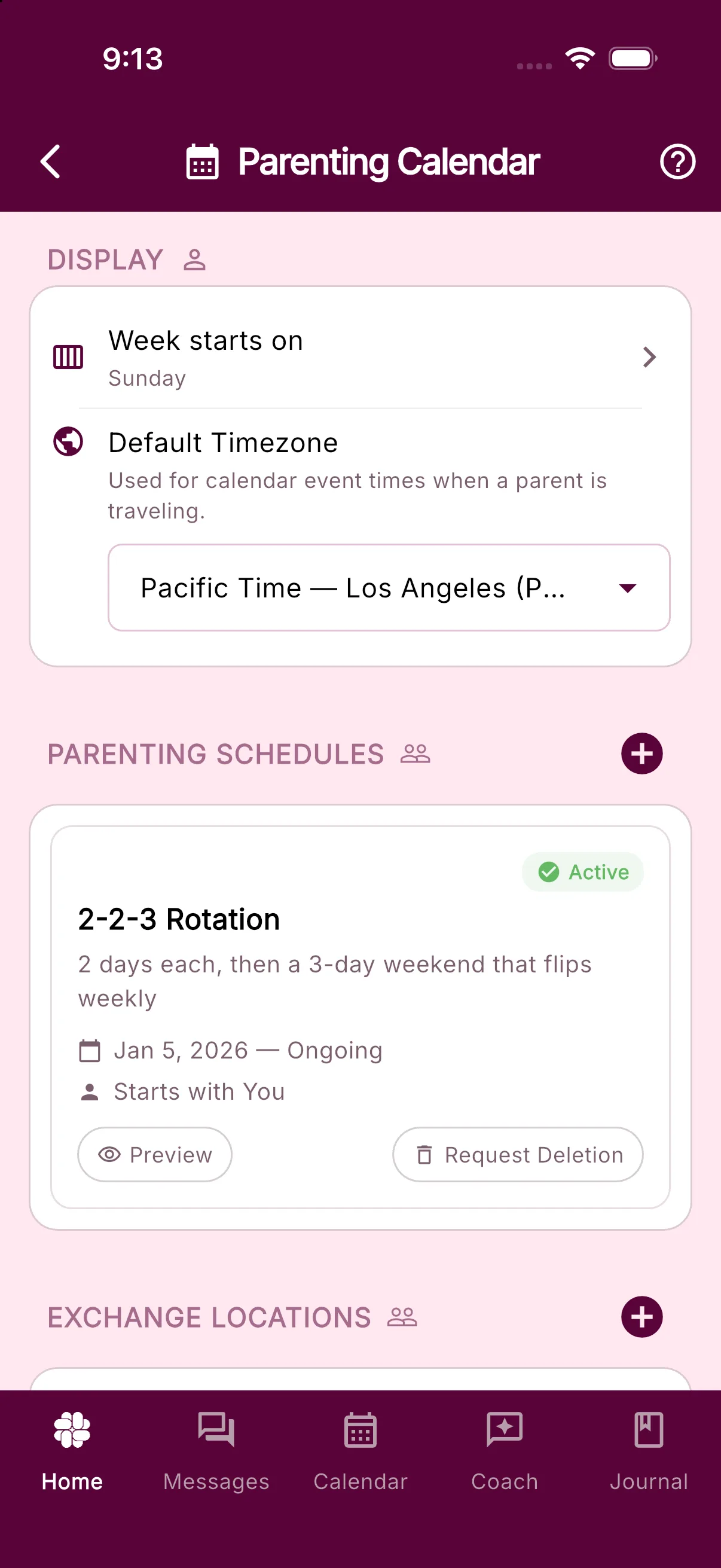
Set the week start and timezone
Under DISPLAY:
- Tap Week starts on and choose Sunday or Monday. This changes the month grid for you only.
- Under Default Timezone, tap the Select family timezone field and pick a zone. The help text reads “Used for calendar event times when a parent is traveling.” The timezone is stored on the family, so both parents see the same one. You can clear it to fall back to your device timezone unless an active guided custody plan uses it; while a plan is active, the family timezone cannot be changed or cleared.
Add a custody schedule
The + beside PARENTING SCHEDULES opens the schedule builder. The same builder opens from the Calendar tab when you tap + and choose Parenting Schedule.
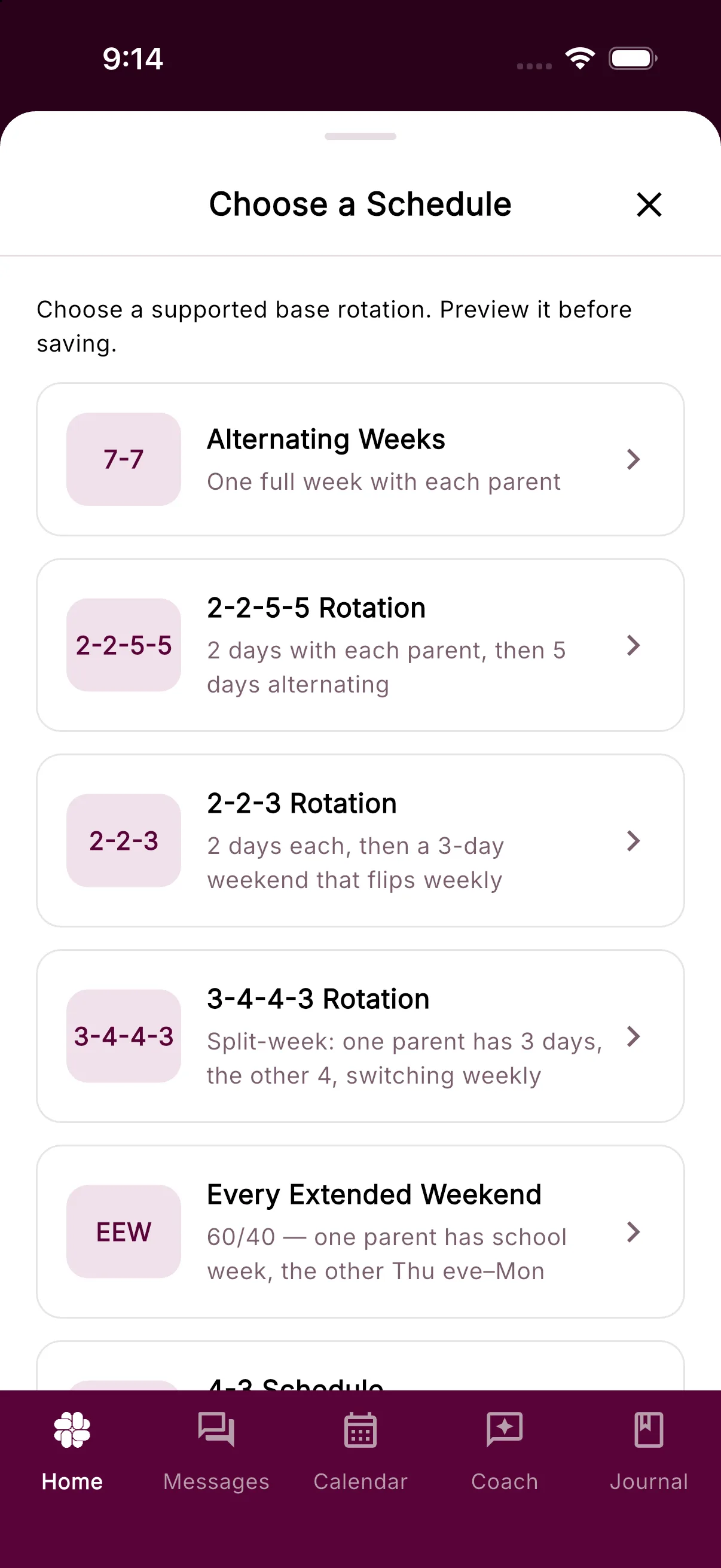
- On the Choose a Schedule step, pick a base rotation. The cards are Alternating Weeks, 2-2-5-5 Rotation, 2-2-3 Rotation, 3-4-4-3 Rotation, Every Extended Weekend, 4-3 Schedule, Every Other Weekend, and 1st, 3rd & 5th Weekends. Each card has a one-line description of the pattern.
- On Configure Schedule, answer When should the schedule start? with a date, then Who has parenting time on that date by tapping your name or your coparent’s name.
- Tap Preview Schedule. Review the Calendar and parenting-time summary, including exact dates and handoff times where shown.
- Confirm the schedule using the displayed action and review its outcome. A Solo schedule is added to your private Calendar; in Collaborative Mode a proposal waits for your coparent’s approval and your current schedule stays active.
Choose Repeating parenting time for a repeating weekday arrangement. Set the responsible parent, frequency, series dates, and all-day or timed block, then review the combined Calendar before confirming. An overnight block can end the next day. Unassigned time appears as neutral days in the preview; it is not automatically assigned to a parent. For holiday, seasonal, or other rules the form cannot represent, availability of the guided Coach option is described below.
Tap My schedule isn’t listed if none of the rotations fit. It asks for the closest reason and does not collect schedule details.
Describe a schedule with Coach
Upcoming iOS release: Coach-guided custom parenting schedules are not in the current iOS production version. The following controls apply once this feature is released for your platform.
From Calendar > + > Parenting Schedule, choose Describe Your Schedule when offered. If a guided plan is already active, the entry becomes Describe a change. Guided analysis requires Connect or higher and current service availability; standard rotations remain a separate option before a guided plan is active.
- Describe the parenting arrangement and tap Set up with Coach.
- Answer any follow-up questions about dates, handoffs, or missing rules.
- Review Your Schedule. Move between months or tap a day to check exact parenting-time intervals.
- If something is wrong, enter a correction and tap Submit Correction. Review the regenerated preview.
- If asked to replace existing standing schedules, review that choice and the effective date. Earlier history and accepted trades remain preserved.
- Tap Confirm this calendar only when the preview is complete and accurate, then confirm the action. In Collaborative Mode your coparent must separately review and approve before it becomes active.
Saving a private draft does not change the Calendar. A pending proposal leaves the current schedule active. Your coparent can open Review proposed parenting schedule, review the rules and handoffs, check the review confirmation, and choose Approve calendar or decline. Uploading a Parenting Plan document does not automatically publish this Calendar.
Manage the schedules you already have
Each saved schedule appears as a card under PARENTING SCHEDULES with a status chip: Active, Pending, Rejected, Expired, Cancelled, or Deletion Requested. Rotation cards also have a Preview chip that shows the pattern on a month grid.
- An amber banner reading “Your schedule has gaps on:” lists any weekdays no schedule covers. Add a schedule to cover them.
- A card that overlaps another active schedule shows a warning. Delete or update one of them so custody days stay clear.
- In Collaborative Mode a proposal from your coparent shows Approve and Decline chips. A proposal you sent shows Cancel Request. Discuss opens a message to your coparent.
- An approved schedule shows Request Deletion; in Collaborative Mode your coparent then sees Approve Deletion and the schedule stays until they confirm. A pending proposal you sent shows Cancel Request, and a received proposal shows Approve and Decline. A rejected schedule you created shows Delete and is removed immediately.
Add exchange locations
This section appears after your coparent connection is active in Collaborative Mode.
- Tap + beside EXCHANGE LOCATIONS.
- In the Add Exchange Location sheet, type a Location Name (for example, Police station or School parking lot) and an optional Address (optional).
- Tap Add Location.
Your coparent approves the location before it becomes Active; until then the row reads Pending Coparent Approval. Deleting an approved location also needs your coparent’s approval. If the + is missing after you connect, one of you has turned off Allow Shared Calendar (see below).
Set the default exchange time and review history
Under SCHEDULE CHANGES (Collaborative Mode only):
- Default Exchange Time is the handoff time for custody exchanges and the starting time for a new schedule change request. It defaults to 6:00 PM until you set one. Tap the row to pick a time or clear it. This value is shared by both parents.
- If your family tracks overnights, a banner above the tile reads “You have N extra nights” or “You owe N nights”.
- Schedule Change History opens the Schedule Changes screen, where you approve, decline, or remove trade requests.
- Calendar History opens a log of schedule, event, trade, and exchange-location updates, including requests you blocked.
For the complete request, approval, withdrawal, and removal flow, see Request and manage parenting schedule changes.
Subscribe from Google Calendar or Apple Calendar
Under SHARE CALENDAR:
- Tap Share Calendar.
- In the Choose calendar details dialog, tap Shared only or Include private. A Full Calendar link with private content includes your private event and task titles, dates, locations, and descriptions, and anyone with the link can read them.
- Two links appear: Full Calendar and Custody Schedule Only. Tap the Copy link icon beside the one you want; the app confirms “Link copied to clipboard”.
- In Google Calendar, Apple Calendar, or any iCal app, use the Subscribe to calendar or Add by URL option and paste the link.
Custody Schedule Only limits the feed to the parenting schedule. It still reveals parenting-time information, so give it only to people you want to have that access. Tap Unshare Calendar to disable both links. Calendar apps can keep previously downloaded events until their caches refresh; unsharing cannot recall copies already saved elsewhere.
This section also works in Solo Mode.
Control what your coparent can add
Under NOTIFICATIONS:
- Allow Shared Calendar (“Share events, schedules, exchanges, and trades”) is on by default. Turning it off stops new shared events, schedules, exchange locations, and trades from being created by either parent. Everything already on the calendar stays visible to both of you.
- Notify me about new calendar events (“Get a system message when your coparent adds an event”) is off by default and only switches on in Collaborative Mode.
Under SCHEDULE REQUESTS (Collaborative Mode only):
- Block Parenting Schedule Requests stops your coparent from proposing parenting schedules and schedule changes. If requests are still waiting for your answer, a Block Parenting Schedule Requests? dialog tells you how many will close and that Calendar History will record the block. Tap Block Requests to confirm. While the block is on, your coparent sees “Schedule requests unavailable” when they try to propose, with a Discuss shortcut into Messages.
Frequently asked questions
How do I add a custody schedule?
Open Settings > Parenting Calendar and tap + beside PARENTING SCHEDULES, or tap + on the Calendar tab and choose Parenting Schedule. Pick a rotation such as Alternating Weeks or 2-2-3 Rotation, set the start date and the parent who starts, tap Preview Schedule, then confirm the displayed action. In Collaborative Mode the proposal waits for your coparent to approve it. You can also use Describe Your Schedule when available.
Can I see the BestInterest calendar in Google Calendar or Apple Calendar?
Yes. Under SHARE CALENDAR tap Share Calendar, choose Shared only or Include private, then copy the Full Calendar link or the Custody Schedule Only link and add it to your calendar app by URL. Unshare Calendar disables both links.
Why is the + button missing beside Exchange Locations?
First confirm your coparent connection is active under Settings > Coparent Connection. Once connected, both parents need Allow Shared Calendar on to add new shared items. Existing schedules and locations stay visible when sharing is paused.
How do I stop my coparent proposing schedules?
Turn on Block Parenting Schedule Requests under SCHEDULE REQUESTS. Any requests still waiting for your answer are closed, and Calendar History records that you blocked them.
Was this helpful?
Still need help?
Contact Support