
How to Set Up Your Children, Parenting Plan, and Custody Schedule
BestInterest keeps your family details in three places: your children under Family & Children, your plan and legal context under Parenting Plan, and your custody rotation in the Calendar tab. Each one is optional. Fill in what you have and Coparent Coach, Tone Guardian, and Message Shield use it to give you guidance that fits your situation.
Every screen below starts from Settings, the button under your dashboard tools on Home. If you cannot find it, see Where to find every setting in BestInterest.
Add your children
- Open Settings > Family & Children.
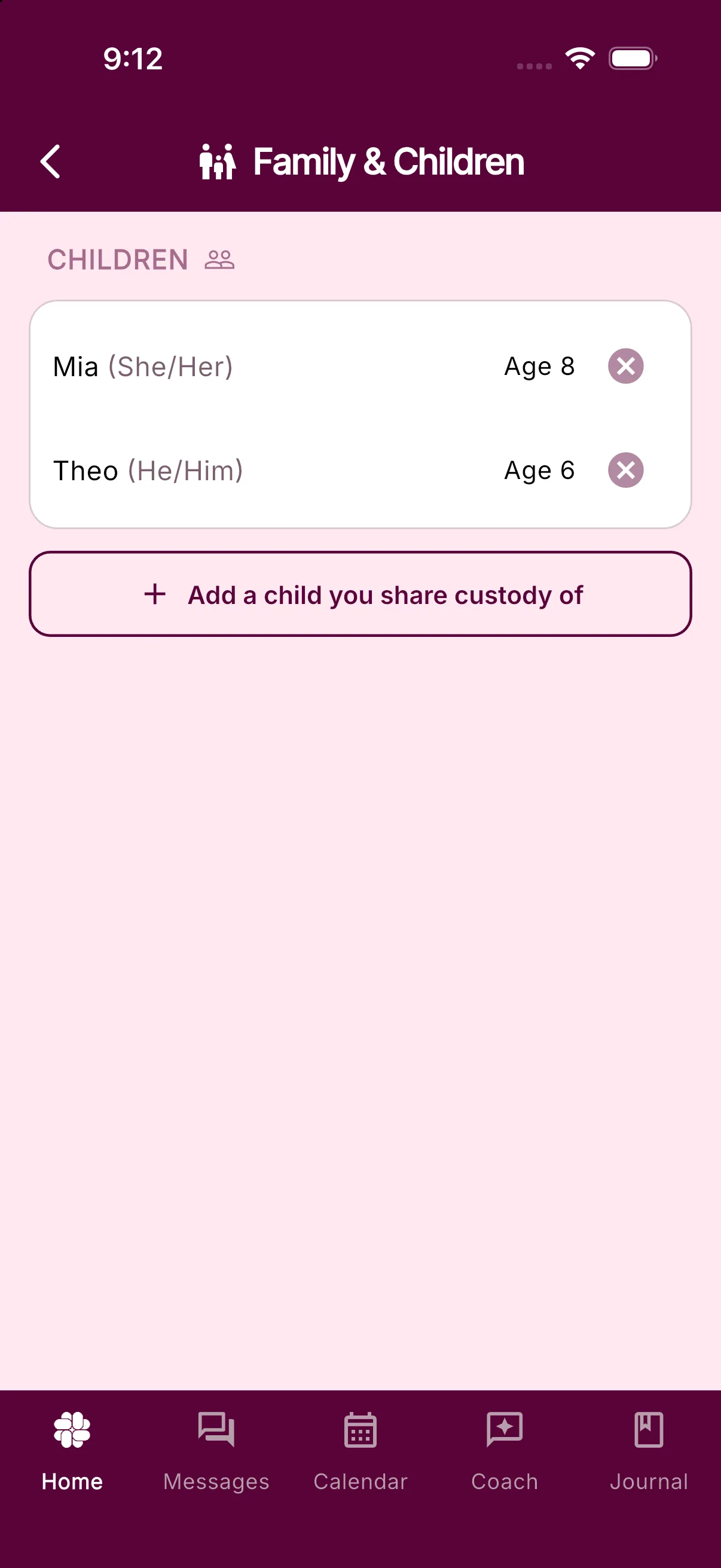
- Under CHILDREN, tap Add a child you share custody of.
- In the Add Child sheet, type a Name. This is the only required field.
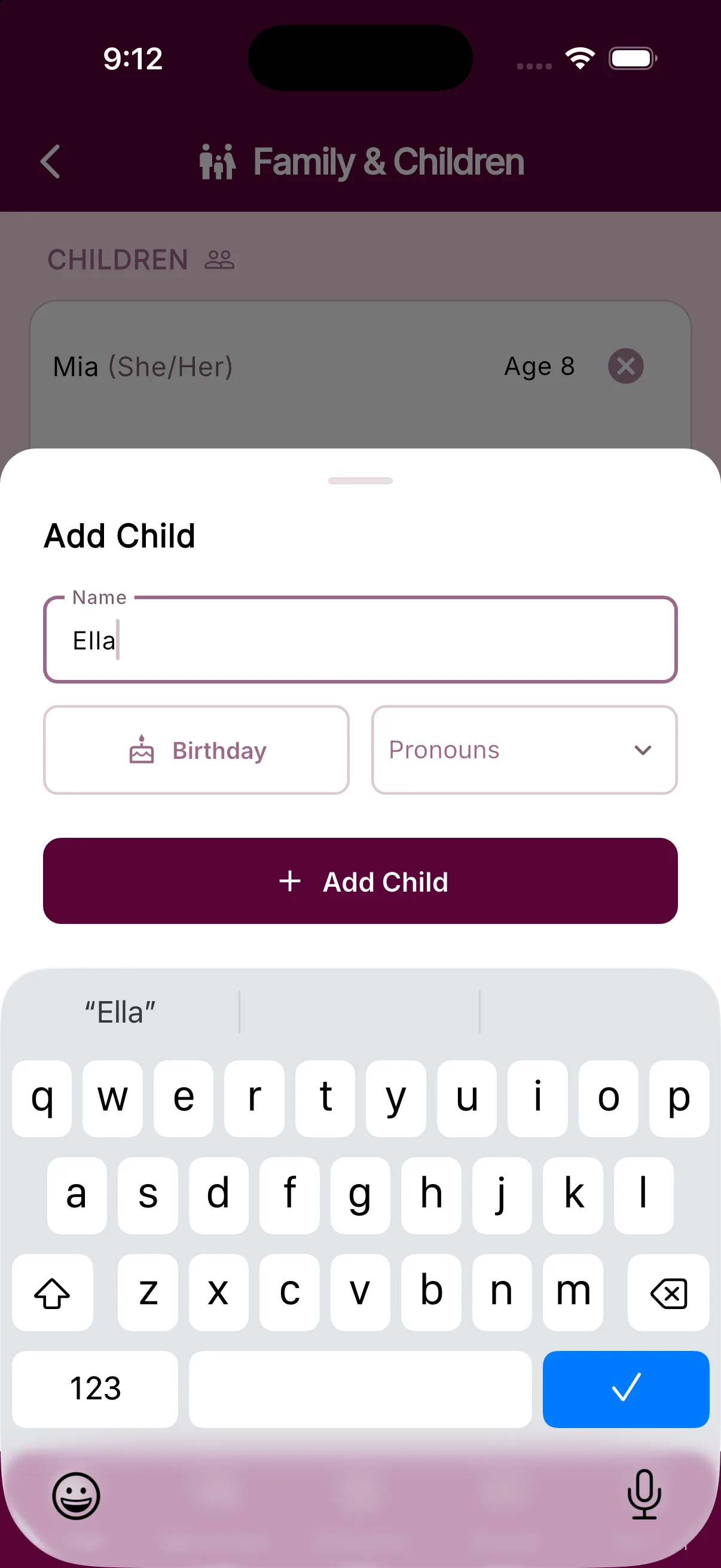
- Tap Birthday to pick a date, and pick Pronouns (He/Him, She/Her, They/Them, Other/None) if you want them used in guidance.
- Tap Add Child.
The list shows each child’s name, their pronouns in brackets, and Age worked out from the birthday. Repeat the steps for every child you share custody of. To take a child off the list, tap the round x beside their name and confirm.
Tell BestInterest about your parenting plan
- Open Settings > Parenting Plan.
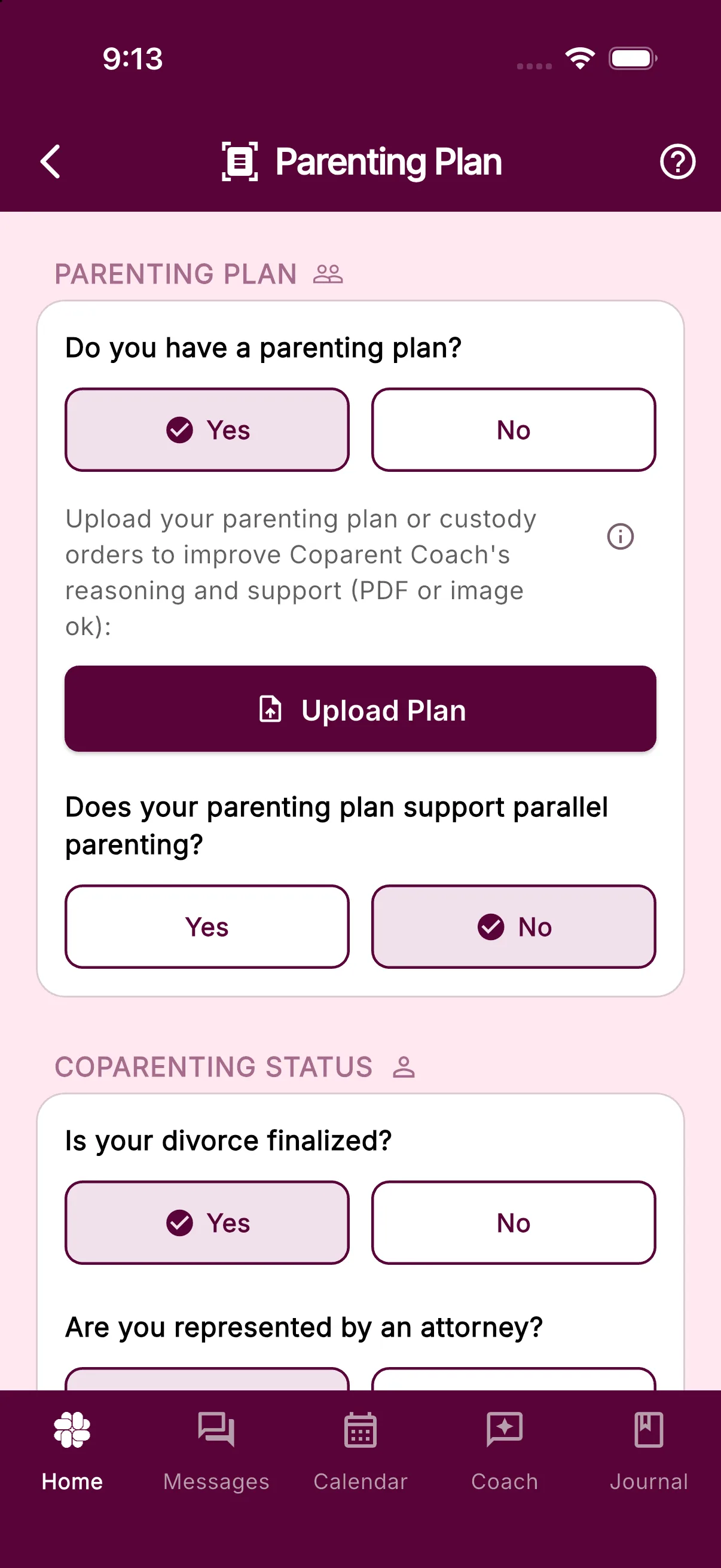
- Under PARENTING PLAN, answer Do you have a parenting plan? with Yes or No. Each tap saves on its own.
- Answer Does your parenting plan support parallel parenting? with Yes or No. This question disappears once a plan is uploaded or under review, because the review answers it from the document itself.
Choosing Yes to the first question opens the upload area described next.
Upload the plan (Protect and Protect Plus)
Uploading needs Protect or higher. On Free or Connect you still see the upload area, plus a banner reading Upgrade to a premium plan to upload and get an AI review of your parenting plan. Tapping the banner opens the upgrade screen.
- With Yes selected, tap Upload Plan.
- Choose a PDF, PNG, or JPG of your parenting plan or custody orders.
- Wait for the message Your parenting plan is being reviewed. BestInterest notifies you when the review finishes, and the card then reads Parenting plan uploaded.
- Later, tap Replace to upload a newer version for your account or Remove to erase your reviewed versions. Replace is unavailable while a review is still running. A connected coparent can use a reviewed copy only after you offer it and they accept it.
For file preparation tips and what the review extracts, read How to upload your parenting plan or the Parenting Plan Review feature page.
Answer the coparenting status questions
The COPARENTING STATUS card sits below the plan section on the same screen. Your conflict rating and attorney answer shape how Coach frames its advice. Your divorce-finalization answer is saved with your profile:
- Is your divorce finalized? Tap Yes or No.
- Are you represented by an attorney? Tap Yes or No.
- How would you describe the level of conflict in your coparenting relationship right now? Tap Relationship Conflict Rating, spin the wheel from 1 Mostly peaceful to 10 Highly conflicted, and tap Done.
Set up your custody schedule
There is no schedule picker on the Parenting Plan screen. Custody rotations live in the calendar.
- Tap the Calendar tab at the bottom of the app.
- Tap the + button, then Parenting Schedule in the Add to Calendar sheet.
- Work through Choose a Schedule, Configure Schedule, and Preview, then save. The app confirms with Schedule created!
Every schedule you build is listed under Settings > Parenting Calendar > PARENTING SCHEDULES, where the + in the header starts the same flow. In Collaborative Mode the option is hidden if your coparent has turned off schedule requests. Exchange locations and schedule changes are covered in How to set up and use the Parenting Calendar.
What your coparent sees
Each section header carries a people icon or a lock icon. Tap it to read the rule for that section.
- CHILDREN is marked Shared: a coparent connected in Collaborative Mode can view it.
- PARENTING PLAN and COPARENTING STATUS are marked Private. Your coparent can choose to use an independent copy of your reviewed plan only after you offer one. Each parent controls their own active plan.
In Solo Mode nothing on these screens is visible to anyone but you. The full breakdown is in What is shared with my coparent?.
Frequently asked questions
Where do I add my children?
Settings > Family & Children. Tap Add a child you share custody of, enter a Name, an optional Birthday and Pronouns, then tap Add Child.
Do I need a paid plan to upload my parenting plan?
Yes. The Upload Plan button on Settings > Parenting Plan needs Protect or Protect Plus. Free and Connect accounts can still answer the Yes/No questions and the Coparenting Status questions.
Where is the custody schedule setting?
It is not on the Parenting Plan screen. Open the Calendar tab, tap the + button, choose Parenting Schedule, and pick a rotation. Settings > Parenting Calendar lists every schedule you have created.
Can my coparent see what I enter?
Children are shared in Collaborative Mode. Your uploaded parenting plan and Coparenting Status are private. After review, you may offer your connected coparent an independent copy of the reviewed plan.
Was this helpful?
Still need help?
Contact Support