
How do I switch between Solo and Collaborative Mode?
You can change how you use BestInterest from Settings > Coparent Connection. Solo Mode lets you use BestInterest independently; Collaborative Mode links two BestInterest accounts so both parents can use shared features.
Switch from Collaborative Mode to Solo Mode
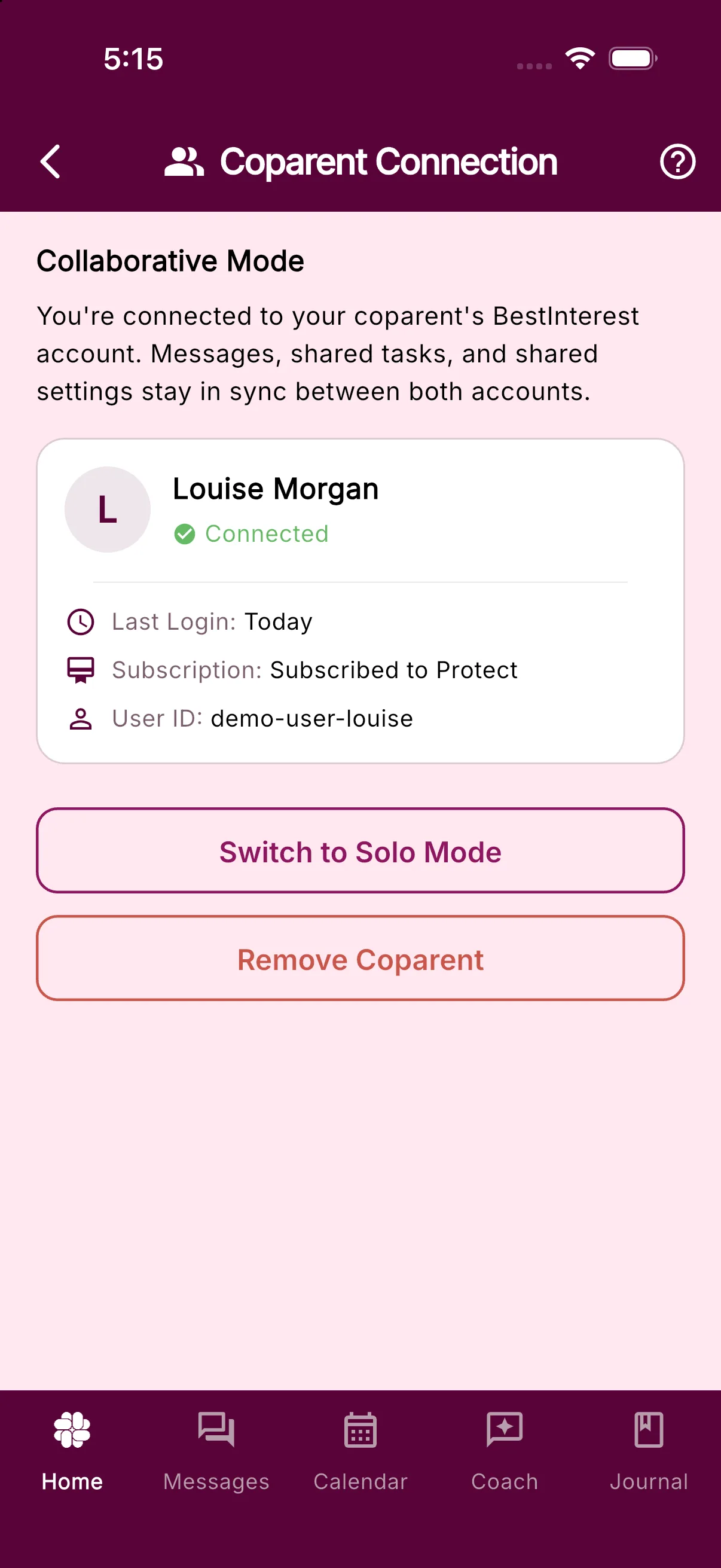
- Open Settings > Coparent Connection.
- Select Switch to Solo Mode.
- Review the confirmation explaining that the coparent connection will be removed.
- Select Continue or Confirm.
BestInterest will disconnect the linked coparent account and switch your account to Solo Mode. You can then set up Boundary Line from Settings > Coparent Connection if you want your coparent’s texts to arrive in BestInterest without requiring them to use the app.
Switching modes is separate from changing or canceling a subscription. Solo Mode is available on the Free Plan, while some Solo Mode features—such as Boundary Line—require a paid plan.
Switch from Solo Mode to Collaborative Mode
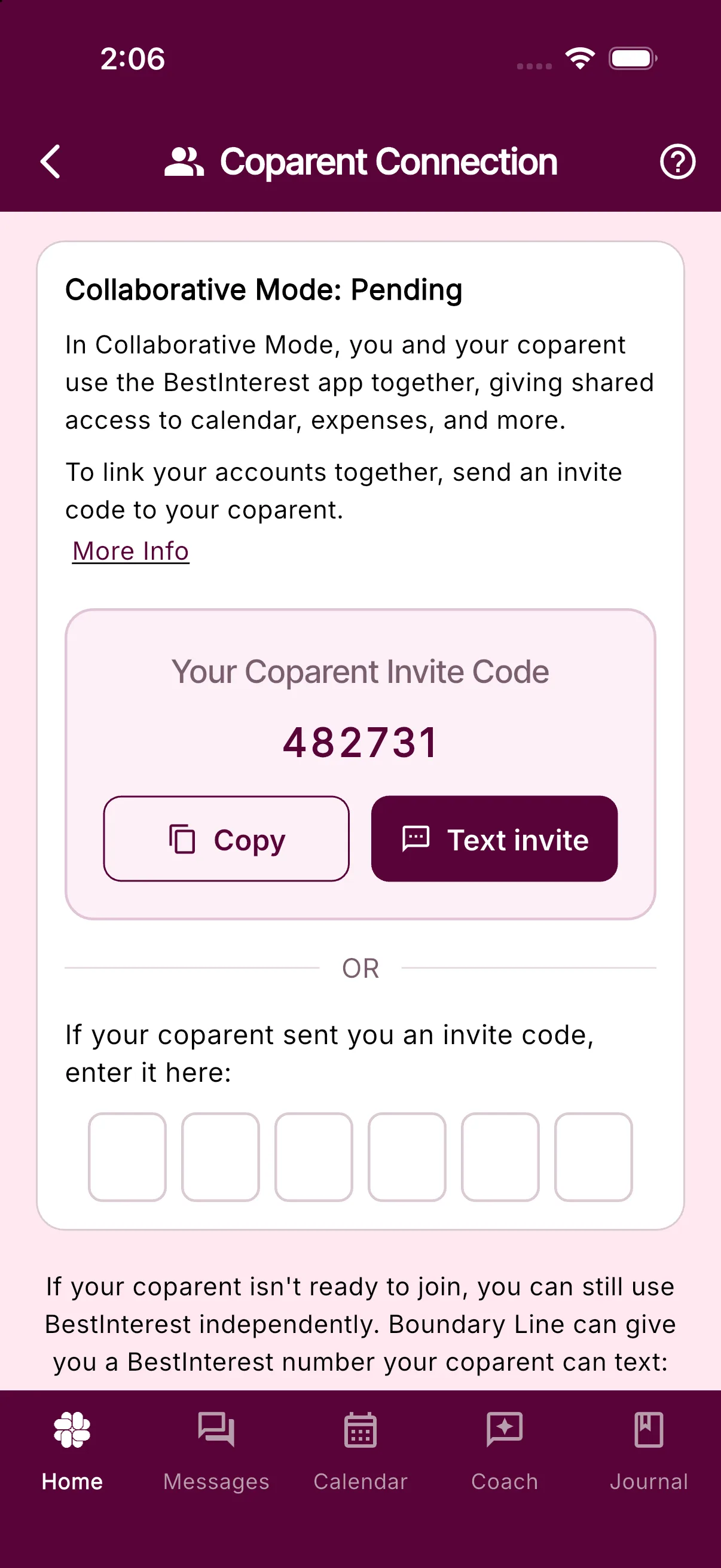
- Open Settings > Coparent Connection.
- Select Switch to Collaborative Mode.
- Review the explanation and select Confirm.
- Choose Get My Invite Code to share a code, or enter the six-character alphanumeric code your coparent sent you.
After entering the code, review the Link accounts? explanation and tap Continue. Your accounts become connected only after one parent enters and confirms the other parent’s invite code. If you had an assigned Boundary Line number, it may be released when you move to Collaborative Mode because future communication takes place between the linked app accounts.
If Your Coparent Is Not Ready to Join
You can remain in Solo Mode and continue using BestInterest independently. Do not switch to Collaborative Mode until your coparent is ready to create or use their account and complete the invite-code connection.
Related Articles
Was this helpful?
Still need help?
Contact Support