
Why can't I start or join a call?
If a BestInterest call will not start, ring, or connect, first identify whether you are using a Collaborative Mode audio or video call, or a Boundary Line voice call in Solo Mode.
For All Collaborative Mode Calls
Check Calling Boundaries and Availability
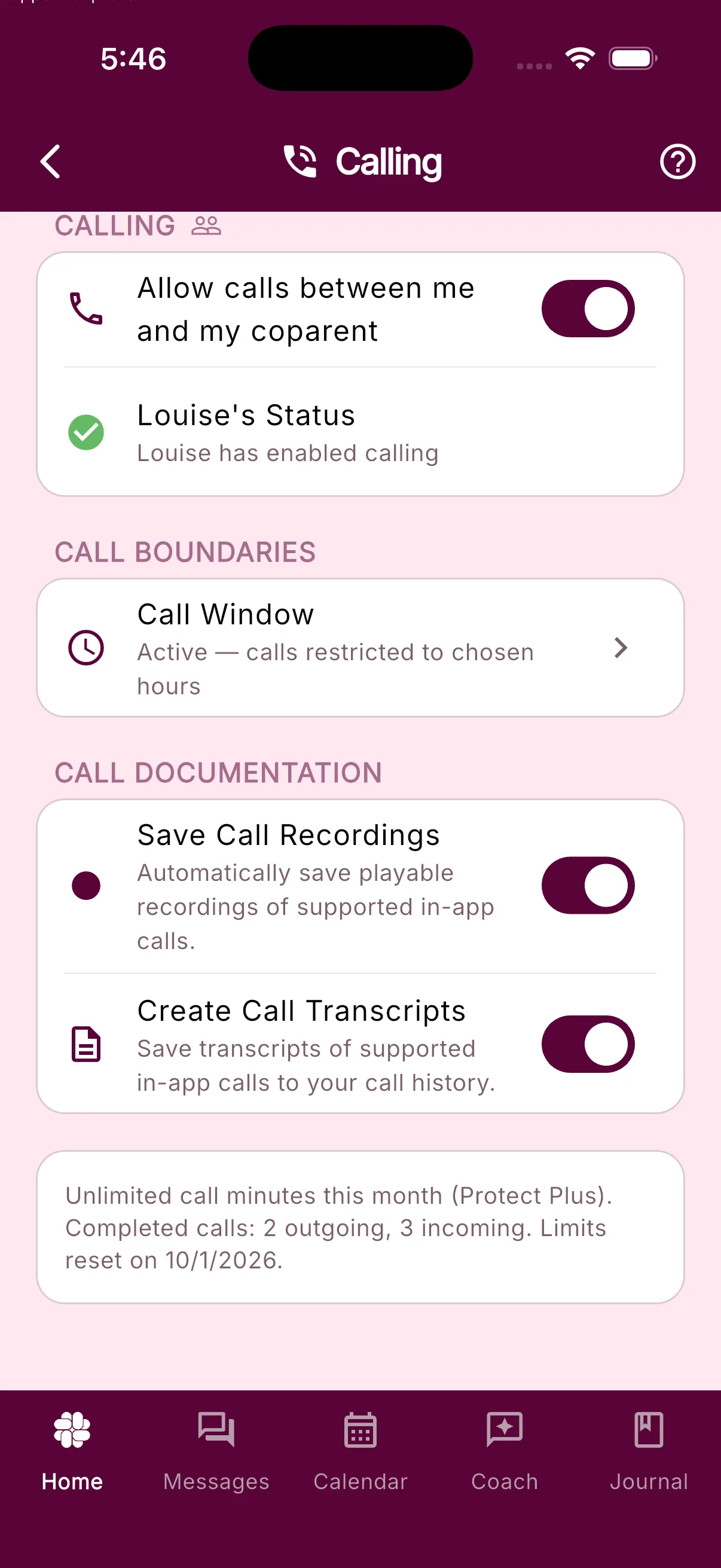
A coparent may have turned off Allow Calls under Settings > Shared Features or set a Call Window under Settings > Calling. Calls outside that window may not ring.
Check the Connection
- Confirm that both parents have a working internet connection.
- Install the latest BestInterest update on both devices.
For Collaborative Mode Audio Calls
Check Microphone Access
Audio calls require microphone access, but not camera access.
- If the app shows Microphone access needed, choose Open Settings and allow access.
- On the web, enable microphone access in the browser’s site settings for BestInterest.
- Close and reopen the call screen after changing permission.
For Collaborative Mode Video Calls
Check Camera and Microphone Access
BestInterest needs both permissions to begin a video call.
- If the app shows Camera access needed or Microphone access needed, choose Open Settings and allow access.
- On the web, enable camera and microphone access in the browser’s site settings for BestInterest.
- Close and reopen the call screen after changing permission.
Check the Caller’s Plan and Limits
- If you are placing the outgoing call, open Settings > Calling to see your remaining minutes and reset date.
- If you are receiving the call and it will not start or ring, ask the caller to open Settings > Calling and check their remaining minutes. Free Plan users can receive incoming calls; only the caller’s allowance is used.
- If the caller has reached a monthly or per-call limit, they can wait for the limit to reset or review available plans.
For Solo Mode Boundary Line Calls
Boundary Line voice calls use your assigned BestInterest number. Save that number as your coparent’s contact and dial the assigned number from the phone connected to your BestInterest account.
First identify whether the failed call was incoming from your coparent or outgoing from you.
If Your Coparent Is Placing an Incoming Boundary Line Call
- Ask your coparent to dial your assigned Boundary Line number rather than your personal number.
- Open Settings > Boundary Line Calling. Under Disable Inbound Calls, choose Allow Calls.
- Review your plan’s available calling minutes. Answered incoming Boundary Line calls use calling minutes.
If You Are Placing an Outgoing Boundary Line Call
- Dial your assigned Boundary Line number from the cell phone number connected to your BestInterest account.
- Confirm that the coparent phone number saved in BestInterest is current.
- Review your plan’s available calling minutes.
The Disable Inbound Calls setting applies only when your coparent calls you. Changing it will not fix an outgoing call that you place.
Still Having Issues?
Contact support and include whether the call was voice or video, incoming or outgoing, the approximate time, the displayed error, both device types, and your app version. Do not include call recordings or private conversation details unless requested securely.
Related Articles
Was this helpful?
Still need help?
Contact Support