
How to Export Your Call History and Create Call Reports
Open More Tools > Reports > Calls, choose a verified PDF report or CSV export, select a date range, and generate the file. Solo Mode exports Boundary Line voice-call history; Collaborative Mode exports in-app audio- and video-call history.
Calls Export & Reports creates an organized record of calls made through BestInterest. You can generate a formatted PDF report for sharing or a CSV spreadsheet for your own records.
The call history available to you depends on how you use BestInterest:
- Solo Mode: Exports voice calls placed or received through your assigned Boundary Line number.
- Collaborative Mode: Exports in-app audio and video calls between you and your coparent.
Calls made directly through your personal phone number or another calling app are not part of BestInterest’s call history.
How to open Calls Export & Reports
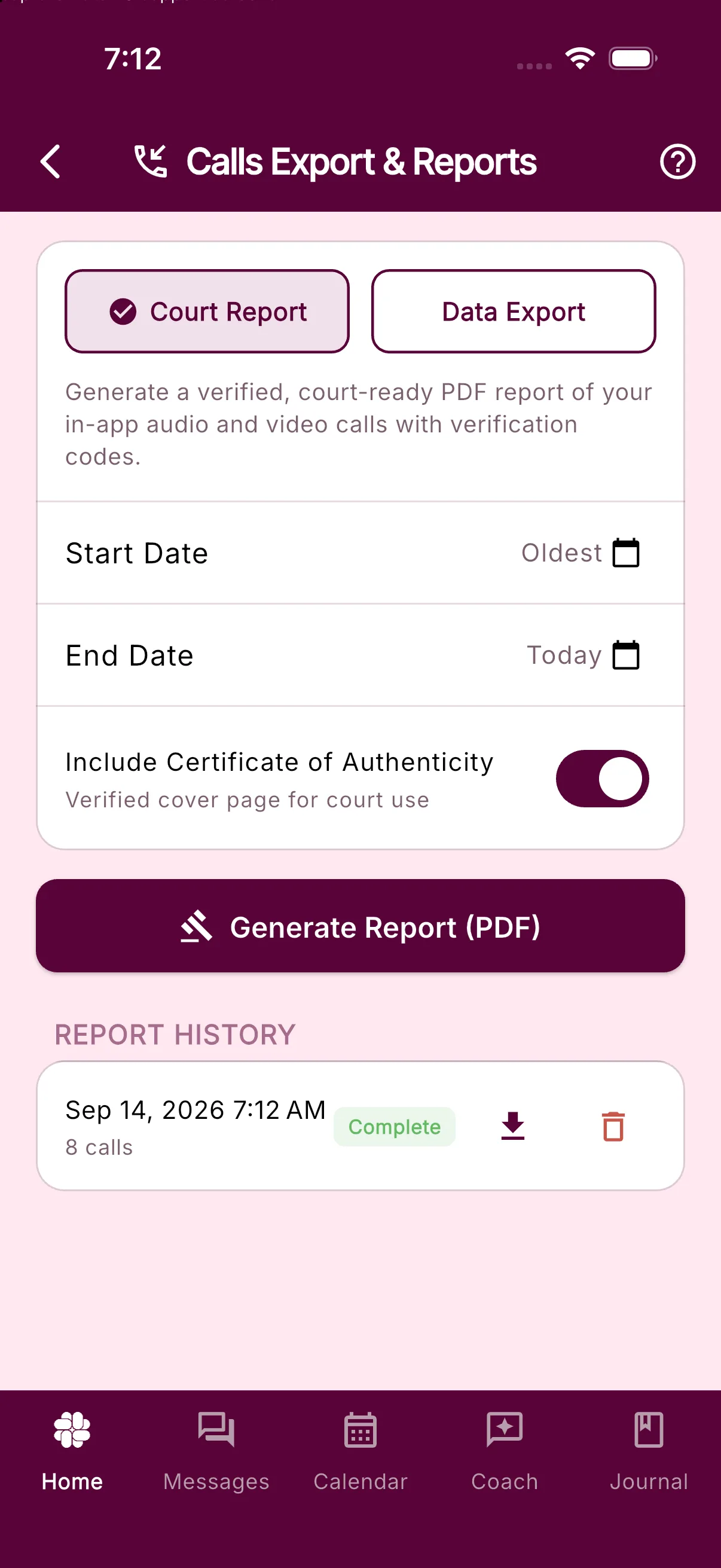
- Open the BestInterest app.
- Open More Tools > Reports > Calls.
Choose a PDF report or CSV export
At the top of the screen, choose the format that fits what you need:
- Court Report (PDF): Creates a clean, formatted call log that is easy to save, print, or share with an attorney, mediator, parenting coordinator, therapist, or other professional.
- Data Export (CSV): Creates a spreadsheet file that you can open in Microsoft Excel, Google Sheets, Apple Numbers, or another spreadsheet app. CSV is useful when you want to sort or review the call data yourself.
Access to report and export options depends on your BestInterest plan. If an option is not included in your current plan, the app will show the available upgrade choices.
Generate your call history
- Choose Court Report or Data Export.
- Select a start date and end date. If you leave the dates unchanged, BestInterest includes the available call history through today.
- For a PDF, choose whether to include a Certificate of Authenticity.
- Tap Generate Report (PDF) or Generate Export (CSV).
CSV files open through your device’s share sheet as soon as they are ready. PDF reports are prepared securely and appear in the report history on the same screen, where you can open or share them after generation finishes.
If no BestInterest calls fall within the selected dates, the app will tell you there is no data to export. Try a wider date range or confirm that you are looking for the correct type of call for your current mode.
What a Solo Mode call export includes
For Solo Mode, Calls Export & Reports uses your Boundary Line voice-call history. Each row includes:
- Date and time
- Direction: incoming or outgoing
- Call status
- Duration in seconds
- Whether the call connected
Only calls routed through your assigned Boundary Line number appear. Calls made directly between personal phone numbers are outside BestInterest and cannot be included.
What a Collaborative Mode call export includes
For Collaborative Mode, Calls Export & Reports uses the in-app audio- and video-call history between you and your coparent. Each row includes:
- Date and time
- Your role as caller or recipient
- The other participant
- Call status
- Duration in seconds
- Whether recording was enabled
The export is a call log. It does not include the audio, video recording, or a transcript of the conversation.
What the Certificate of Authenticity does
When included, the Certificate of Authenticity adds a cover page to the PDF with report-identifying and verification information. This can help a professional confirm that the report came from BestInterest.
A certificate does not guarantee that a court will accept a report as evidence. Requirements vary by court and jurisdiction, so ask your attorney or court clerk how they prefer call records to be submitted.
Using call exports with your professional team
A call export can help you and your professional team review communication patterns without relying on screenshots or a phone’s general call log. For example, you can use it to:
- Keep a chronological record of completed, missed, incoming, and outgoing calls
- Review call frequency and duration over a specific period
- Share an organized call log with an attorney, mediator, parenting coordinator, therapist, or coach
- Add a focused date-range report to your broader record-keeping
Share exports only with people you trust. Once a PDF or CSV leaves BestInterest, its security depends on where you save it and how you send it.
For more about BestInterest reports, read Documenting Your Journey: Verified Reports for Court and Beyond.
Frequently asked questions
What is the difference between the PDF report and CSV export?
The PDF is a formatted call report designed for sharing or printing. The CSV is a spreadsheet file intended for sorting, filtering, and personal record-keeping.
Which calls are included in Solo Mode?
Solo Mode includes voice calls placed or received through your assigned Boundary Line number. Calls made directly through your personal phone number are not included.
Which calls are included in Collaborative Mode?
Collaborative Mode includes in-app audio and video calls between you and your coparent. It does not include calls made through your phone's regular dialer.
Does a call report include audio, video, or a transcript?
No. Calls Export & Reports creates a call-history log. It does not place audio, video, or transcript content in the PDF or CSV.
Was this helpful?
Still need help?
Contact Support