
Message Notification Options: Push, Email, and Smart Silence
BestInterest sends an alert when your coparent messages you. You decide which channel carries it, whether the alert shows the message text, and how often alerts arrive. All of this lives on one screen.
Open the Notifications screen
- On Home, tap Settings under the dashboard tools.
- Under COMMUNICATION SETTINGS, tap Message Notifications.
The screen is titled Notifications. If you cannot find Settings, see where to find Settings.
Push and email
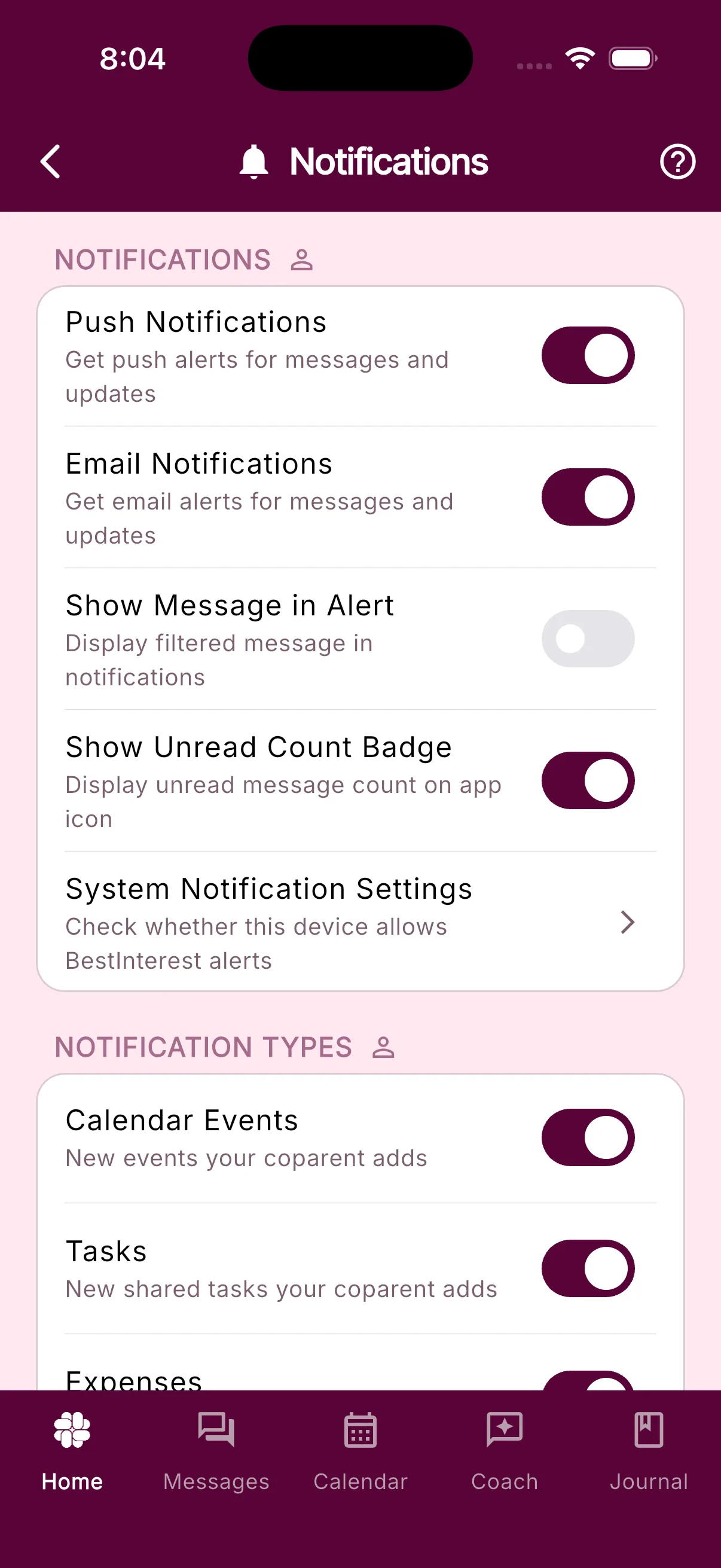
The NOTIFICATIONS section holds the main toggles:
- Push Notifications: alerts on this device and any other device signed in to your account. Turning it on asks your phone for permission if it has not been granted yet.
- Email Notifications: the same alerts sent to the address on your Personal Profile. The toggle is greyed out until that address is verified.
- Show Message in Alert: puts the filtered text of your coparent’s message inside the push and the email instead of a generic line. Details in showing the message in the notification.
- Show Unread Count Badge: keeps the unread count on the app icon.
- System Notification Settings: opens your phone’s own notification page for BestInterest, where you can confirm the device allows alerts. This row does not appear on the web app.
Push and email work independently. With both off, the screen shows Coparent notifications disabled and you must open the app to see new messages. Nothing is lost; every message stays in your inbox.
Smart Silence frequencies
The SMART SILENCE section shows your current frequency. Tap the row to open the Smart Silence screen and pick one:
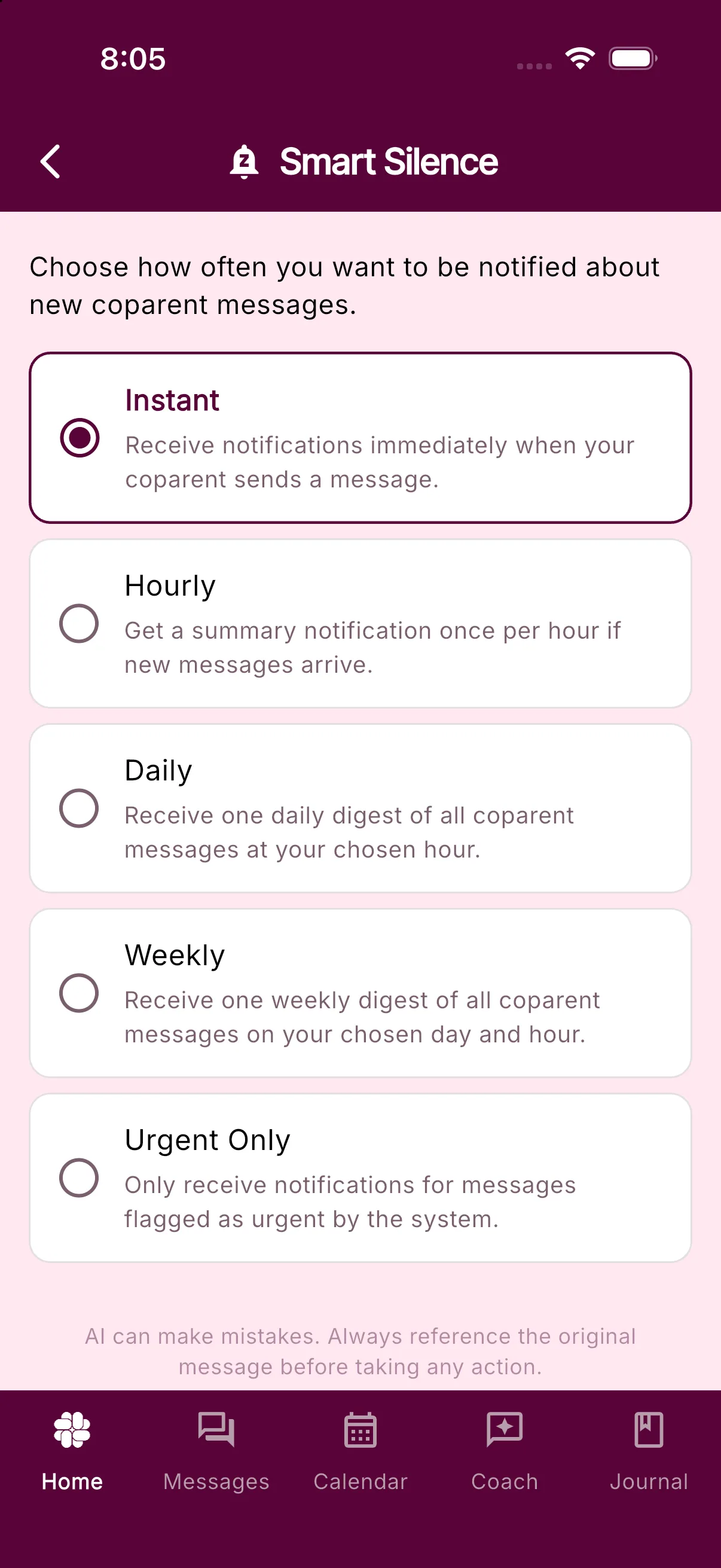
- Instant: an alert for every message.
- Hourly: the first message starts a one-hour timer. Anything else that arrives in that hour is rolled into a single alert when the timer ends.
- Daily: one digest at the Delivery hour you pick.
- Weekly: one digest on the Delivery day and Delivery hour you pick.
- Urgent Only: no routine alerts at all. Choosing it shows an Urgent Only Mode notice that urgency detection is AI and can make mistakes; tap OK to confirm.
Digest times follow the time zone on your account. A digest is skipped if you have already read everything, so opening the app before the hour arrives means no alert. When Show Message in Alert is on, the digest quotes the newest message and adds a count of the rest.
Smart Silence is part of Protect and Protect Plus. On Free or Connect the row reads Instant and tapping it opens an upgrade prompt. If a Protect subscription ends, the frequency goes back to Instant on its own.
Urgent messages skip the queue
On every frequency, a message the AI flags as urgent, such as a last-minute exchange change or a health concern, is sent immediately. This is what makes Urgent Only and the digest options safe to use. See how urgency is decided and the note on AI accuracy.
Devices under PUSH DELIVERY
Scroll to PUSH DELIVERY to see every device that has connected to push notifications, with its type and the date it was added.
- Your current device shows a Connected check mark. If the app cannot confirm delivery on it, the row says This device needs attention with a Repair button.
- Another device shows a bell icon. Tap it to stop alerts on that device and confirm with Turn Off. The row then reads Notifications off; tap the bell again to turn alerts back on.
- A device you turned off yourself shows Turn On when you are using it.
Devices cannot be deleted from this list. A phone you no longer sign in to simply stops receiving alerts.
Recent Notifications, below the device list, shows the last deliveries to your devices and email with the time and destination. Use it to confirm an alert actually went out.
Other toggles on the same screen
- NOTIFICATION TYPES: separate switches for Calendar Events, Tasks, Expenses, and Binder changes your coparent makes. A switch is greyed out when that shared feature is off.
- NOTIFICATION SOUNDS: tap a row to choose a sound for each alert type.
- REMINDERS: Daily Journal Reminder and Coach Tips, both optional.
Not getting alerts?
Work through why am I not receiving notifications. The quickest checks are Push Notifications on, your device listed as Connected under PUSH DELIVERY, and System Notification Settings allowing alerts.
Frequently asked questions
Where are the message notification settings?
On Home, tap Settings, then Message Notifications. The screen is titled Notifications. Push Notifications and Email Notifications are the first two toggles.
What Smart Silence frequencies can I pick?
Instant, Hourly, Daily, Weekly, or Urgent Only. Daily and Weekly add a Delivery hour picker, and Weekly adds a Delivery day picker. Smart Silence is included with Protect and Protect Plus.
Will an urgent message wait for my daily digest?
No. A message the AI flags as urgent is sent right away on every frequency, including Weekly and Urgent Only.
Can I stop alerts on my old phone?
Yes. Under PUSH DELIVERY, tap the bell icon next to that device and confirm with Turn Off. Tap it again to turn alerts back on. Devices cannot be removed from the list.
Was this helpful?
Still need help?
Contact Support