
How to Read and Send Messages in BestInterest
The Messages tab holds every message between you and your coparent, plus the tools to write, attach, search, and check on what you sent. This guide walks the screen from top to bottom.
Open your conversation
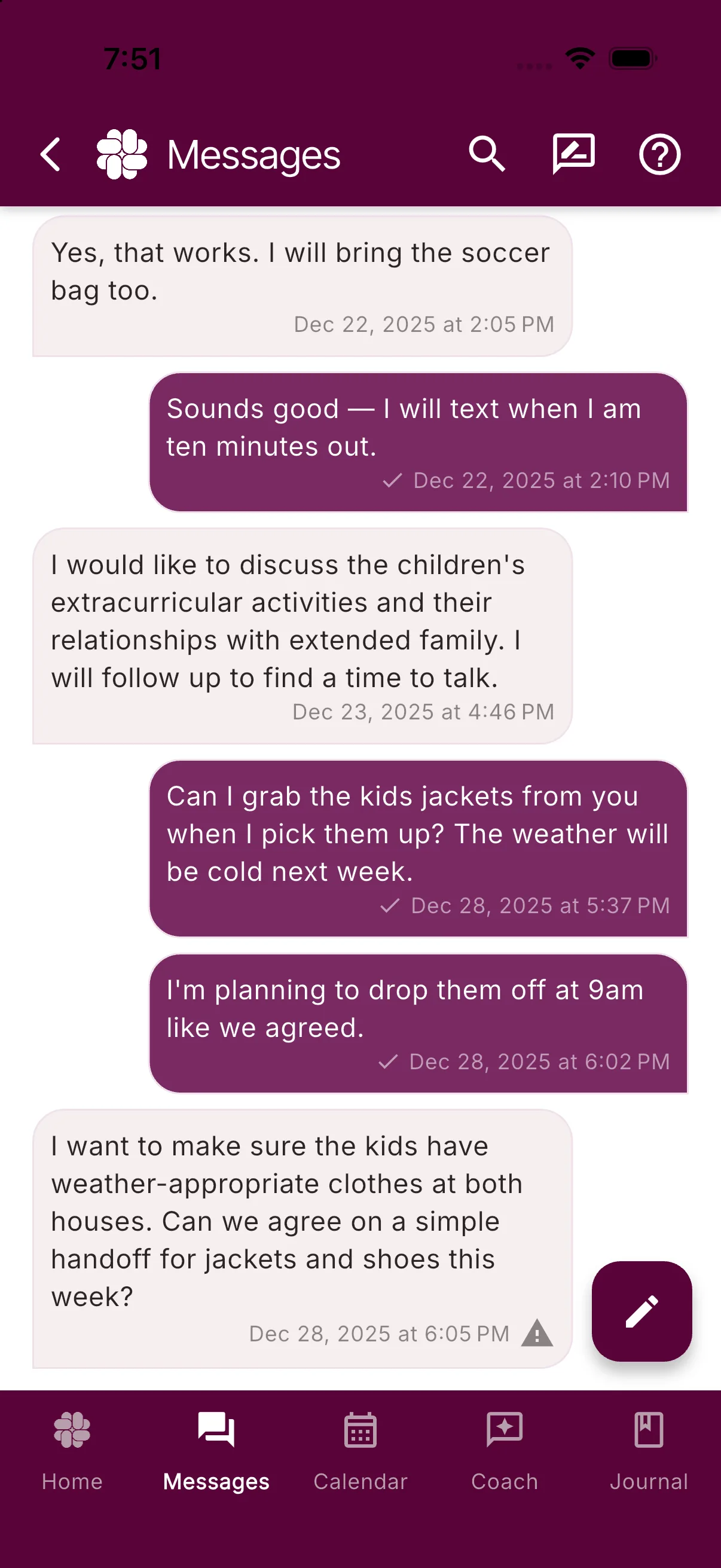
- Tap Messages in the bar at the bottom of the app. The bar always shows Home, Messages, Calendar, Coach, and Journal.
- The thread loads with the newest message at the bottom. Your coparent’s messages sit on the left; yours sit on the right.
- Small icons in the footer of a bubble tell you more at a glance: a warning icon for Urgent, Concerning, Threat, or Flagged messages, a document icon when files are attached, and a tick icon on your own messages for delivery status. Photos show as a thumbnail you can tap to view.
Read a message
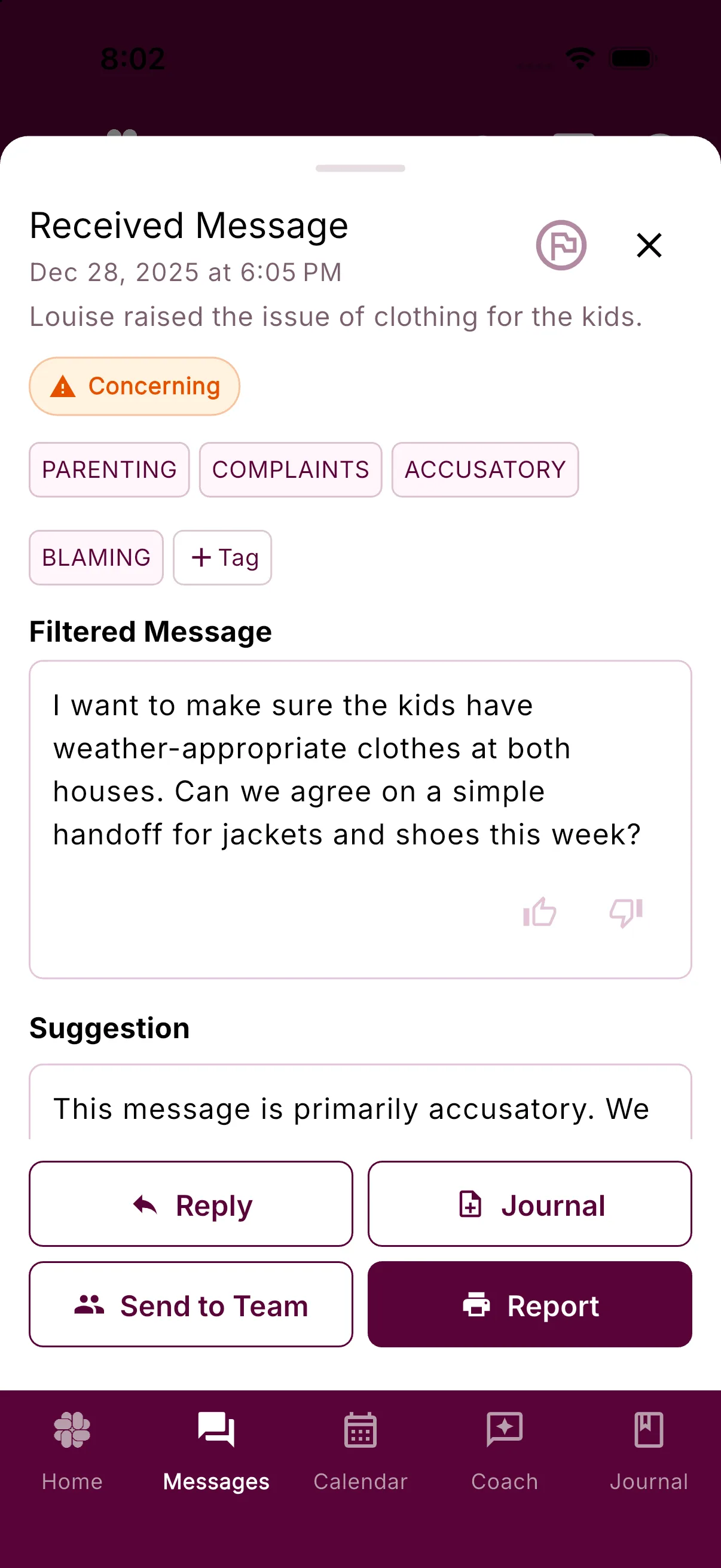
- Tap any bubble. A detail sheet opens titled Received Message or Sent Message, with the date and time underneath.
- For a received message, the body is labelled Filtered Message when Message Shield changed the wording, Reviewed Message when it was checked and left as written, or Original Message when it was not reviewed.
- If the message was filtered, a second box labelled Original Message appears below it. It starts hidden and reads Tap to view original message. Tap once to reveal the text your coparent typed. This box hides by default because Hide Original Message is switched on under Settings > Emotional Safety.
- For a sent message, the sheet shows Delivery Status: with the current state as a link. Tap it to open Delivery History. If Tone Guardian reviewed the message, a Tone Guardian says: box explains what it changed or that it approved the message as written.
- Use the flag icon at the top of the sheet to mark a message for yourself. Its tooltip reads Flag or Unflag.
- The buttons along the bottom let you act on the message: Reply opens the compose sheet quoting it, Journal adds it to your journal, Send to Team forwards it to a professional on your team, and Report generates a printable report.
- Tags for the message sit in a chip row on the sheet. Tap a chip to search for it, or add your own. See Using Magic Tags and Manual Tags.
Message Shield only filters incoming messages on Protect plans and above. Adjust what it does under Settings > Message Shield. See Message Shield Settings.
Send a message
- Tap the pencil button at the bottom right of Messages. Its tooltip reads New Message.
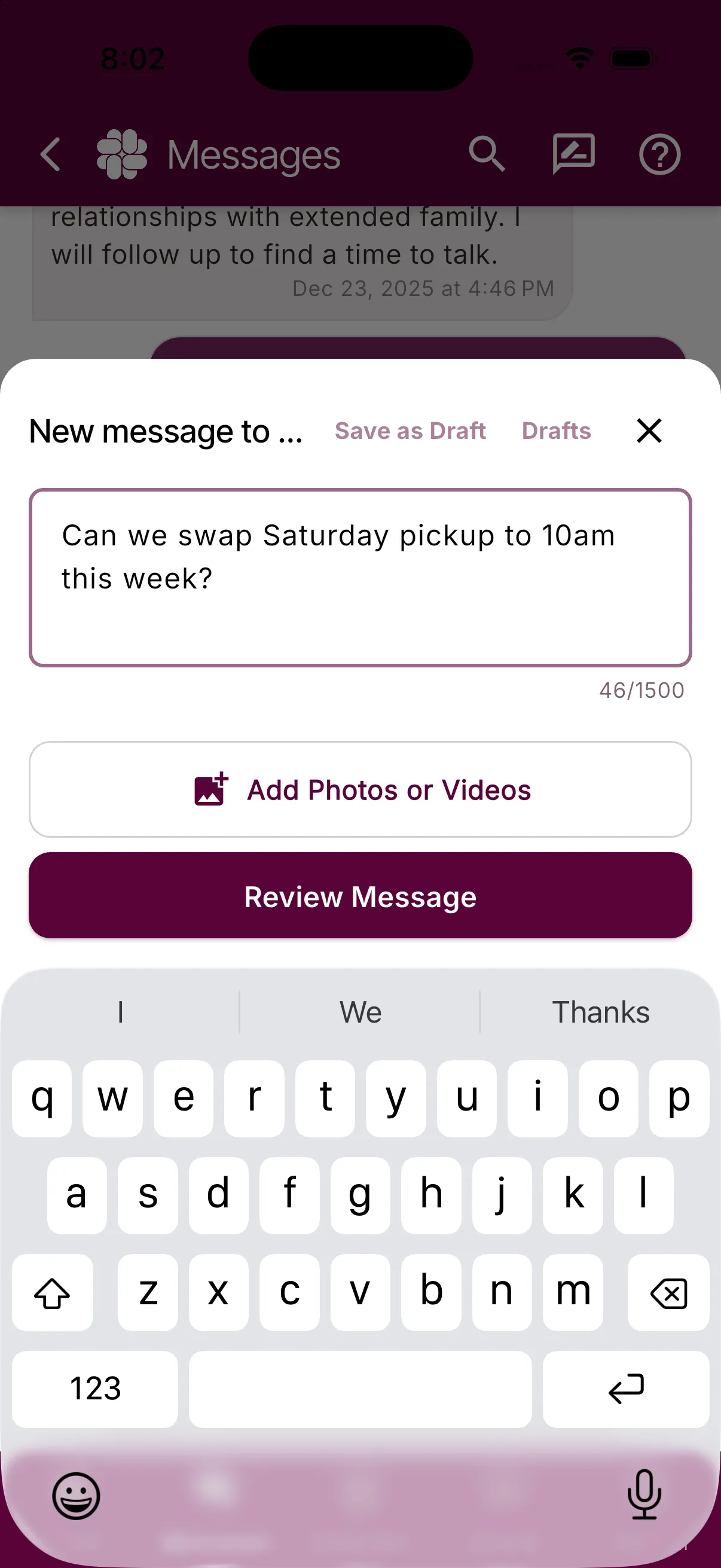
- A compose sheet slides up with the header New message to followed by your coparent’s first name. Type in the field marked Type your message….
- Check the main button. It reads Review Message when Tone Guardian will look at your text first, or Send Message when nothing stands between you and sending.
- If you tap Review Message, a review sheet titled Send Message to your coparent opens. The text box is labelled Suggested Message, Original Message, or Edited Message depending on what is in it, and a Tone Guardian says: note explains the suggestion. Edit the text as you like, use Revert to Original or Revert to Suggested to swap versions, tap Review Message to run the check again, or tap Send Message to send what is in the box.
- When the message goes, the sheet closes and a Message sent! notice appears.
Tone Guardian is a Protect feature, and you can turn it off under Settings > Tone Guardian, in which case the button always reads Send Message. The review is also skipped for a photo with no text, a Ready Reply sent as written, a Coach suggestion sent unchanged, and short everyday messages that need no check. See How to Adjust Tone Guardian Settings.
To get feedback without sending anything, tap Review with Coach inside the compose sheet. Coparent Coach reads your draft and replies in a Coach Feedback panel above the text field.
Attach photos
- In the compose sheet, tap Add Photos (it reads Add Photos or Videos when video attachments are available on your account).
- A menu titled Attach Photo (or Attach Media) offers Take Photo, Choose from Gallery, Choose from Files, and, when available, Choose Video.
- Each selection appears as a thumbnail above the text field. Tap the cross on a thumbnail to remove it. You can attach up to 5 images per message, each under 10 MB.
- Send as usual. A message that contains only photos skips Tone Guardian review.
If the gallery option does nothing, the app needs photo access. See Why can’t I attach or send photos?. Every photo you send or receive also lands in My Photos Gallery.
Drafts
- In the compose sheet, tap Save as Draft to keep an unfinished message. The sheet closes and a Draft saved notice confirms it.
- To reopen one, tap the Drafts icon at the top of Messages, beside the search icon. It carries a badge whenever you have saved drafts and its tooltip changes to Drafts available. The Message Drafts screen lists them; tap one to continue writing.
- The compose sheet also has a Drafts link next to Save as Draft, so you can jump between drafts without leaving the sheet.
- When you reopen a draft the header reads Edit Draft, and a Delete Draft button sits under the send button.
Drafts stay on your side only. See Can My Coparent See My Message Drafts?.
Search
- Tap the search icon at the top right of Messages. Its tooltip reads Search.
- Type two or more characters in Search messages to find that exact text anywhere in a message, regardless of capitalization. You can also type in Search by tag, tap a flag chip (Urgent, Concerning, Threat, Flagged, Legal Threat, Inflammatory, Coercive Control), or pick a date range.
- Results replace the thread, newest first. A bar at the top reads for example Text: “school” (4 results). If more results are available, tap Load more results. Tap the bar, or its cross, to clear the search and return to the full conversation.
More on how matching works in How to Search Messages and Journal Entries.
Message status
A small icon in the footer of each message you sent shows where it is. Hold on it to read the label:
- Sending: the message is queued and on its way.
- Sent: it left BestInterest.
- Delivered: it reached your coparent’s phone or app.
- Read: your coparent opened it (a double tick in green).
- Failed or Undelivered: it did not get through (shown in red). Open the message and tap Delivery Status: to see the history, then send it again.
What each state means and what to do next is covered in What do Pending, Error, and Undelivered mean?.
Frequently asked questions
Where is the button to write a new message?
Tap the pencil button at the bottom right of the Messages tab. A compose sheet opens with a text field, an Add Photos button, and a main button that reads Review Message or Send Message.
Why does the button say Review Message instead of Send Message?
Review Message means Tone Guardian will check your wording before anything goes out. You see its suggestion, edit or revert, then tap Send Message on the review sheet. Tone Guardian is a Protect feature and can be switched off under Settings > Tone Guardian.
How do I see the message my coparent actually wrote?
Tap the message bubble. If Message Shield changed the wording, the sheet labels the body Filtered Message and shows an Original Message box beneath it. Tap Tap to view original message to reveal it.
What do the small icons under my sent messages mean?
They are delivery status: Sending, Sent, Delivered, Read, Failed, or Undelivered. Open the message and tap the Delivery Status link for the full history.
Was this helpful?
Still need help?
Contact Support