
How to Manage Your Password and Security Settings
The Password & Security screen shows the login method connected to your BestInterest account and gives supported mobile devices an additional App Privacy Lock setting.
Turn On App Privacy Lock
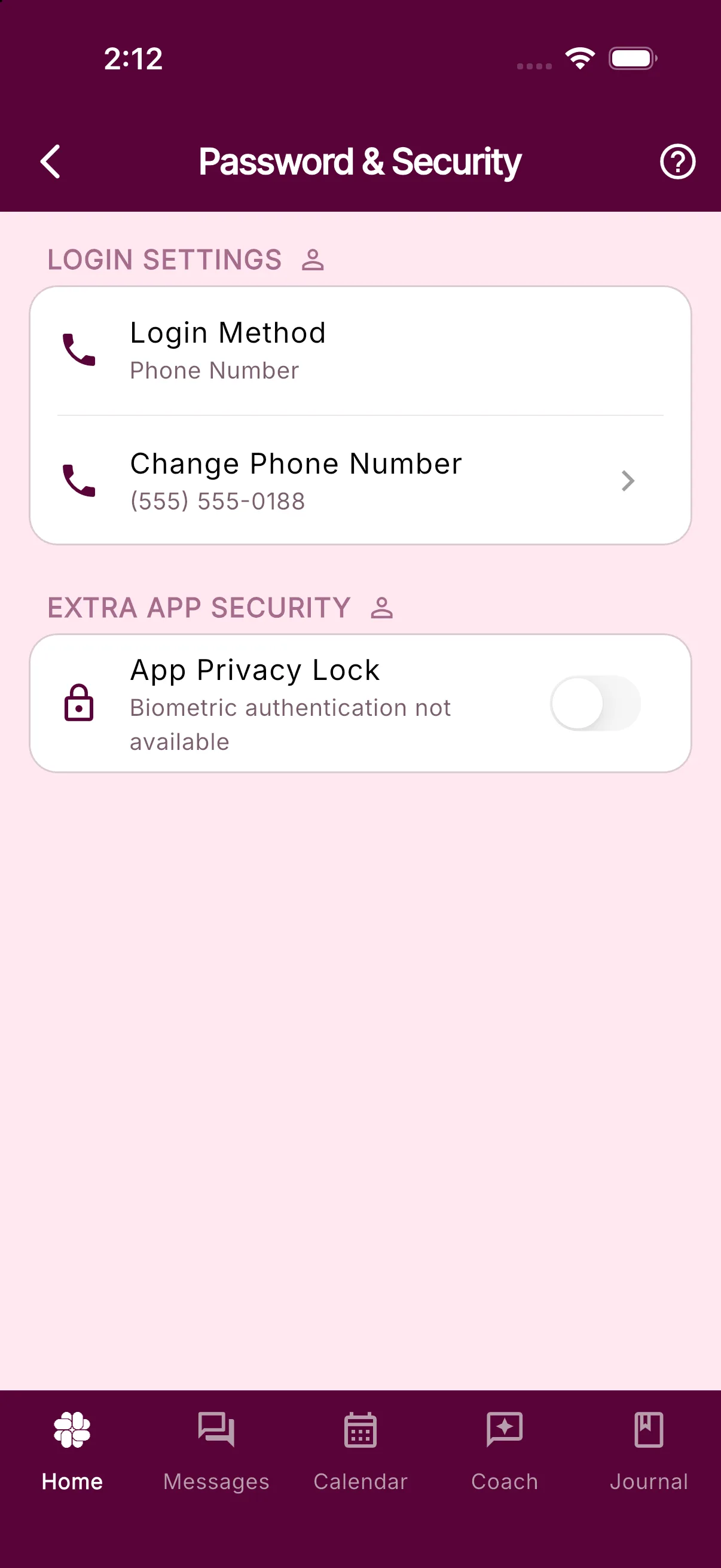
- Open Settings in the BestInterest mobile app.
- Choose Password & Security.
- Turn on App Privacy Lock.
- Complete your phone’s authentication prompt.
Privacy Lock uses the local authentication methods configured on your phone, such as Face ID, fingerprint, PIN, or passcode. BestInterest requires authentication before the setting can be turned on or off.
After Privacy Lock is enabled, BestInterest requests authentication on a cold start and when you return after the app has been in the background for more than a couple of seconds. The feature is available in the iOS and Android apps on supported devices, not the web app.
Privacy Lock controls access to the BestInterest app view. It does not hide notification previews or prevent screenshots after the app is unlocked. Use your phone’s notification settings to manage preview text.
Manage Your Login Details
This screen also shows your current login method. Depending on how you sign in, you can send a password-reset email or update the phone number connected to your account.
For the feature overview, see Privacy Lock.
Was this helpful?
Still need help?
Contact Support