
Why isn't my subscription or upgrade showing?
If Apple or Google shows an active BestInterest purchase but the app still displays the wrong plan, use Restore Purchase from the account that made the purchase.
Restore the purchase
Purchase restoration is available in the iOS and Android apps. It is unavailable on the web.
- Confirm that the device is signed in to the same Apple ID or Google account used to buy BestInterest.
- Open BestInterest and go to Settings > Manage Subscription.
- Tap Restore Purchase.
- Wait for Purchases restored, then close and reopen the subscription screen.
If the app says No active purchases found to restore, check the App Store or Google Play subscription list and confirm that BestInterest is active under the current store account.
If your store purchase expired
Restore Purchase can recover a currently active App Store or Google Play purchase, but it cannot restart an expired subscription.
- Open Settings > Manage Subscription.
- Under UPGRADE OPTIONS, tap Resubscribe.
- Choose Connect, Protect, or Protect Plus and complete the store purchase.
The screen shows Resubscribe when a previous subscription has lapsed. If the account has not subscribed before, the same row says Unlock AI-Powered Protection. Both labels open the plan chooser.
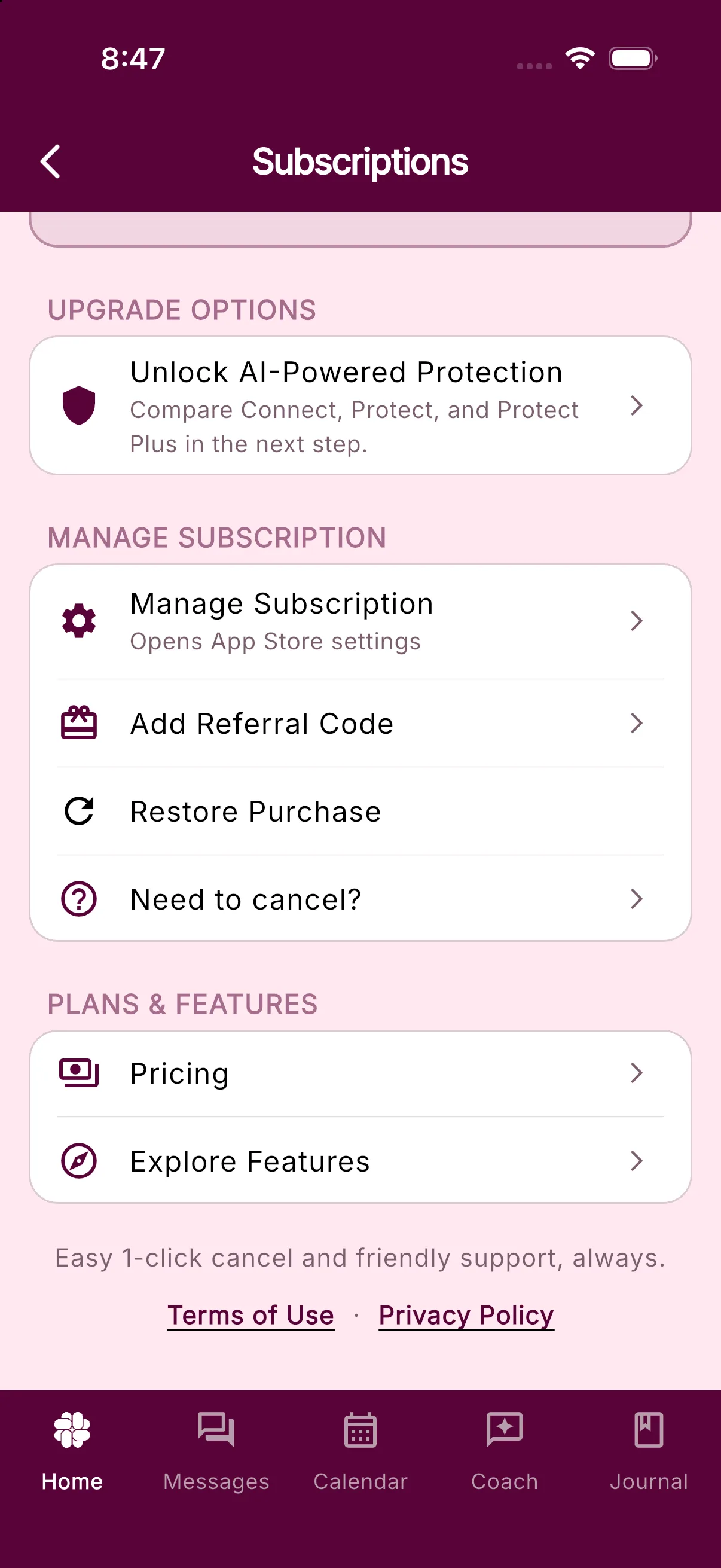
If Resubscribe is missing or does not open, contact support and include a screenshot of the subscription screen. Do not purchase again if the store still shows the existing subscription as active.
If you just upgraded
- Keep the app open with a working internet connection for a moment.
- Return to Settings > Manage Subscription to refresh the displayed plan.
- Close and reopen BestInterest if the old plan remains visible.
- Use Restore Purchase once if the store already shows the new plan.
Avoid purchasing the same plan again while the first purchase is active.
If you purchased on the web
A purchase through an identified BestInterest web checkout link is attached directly to that BestInterest account and does not use Restore Purchase. Return to Settings > Manage Subscription. If the plan has not refreshed after a moment, sign out and back in with the same BestInterest account used for checkout.
Do not purchase the plan again while the first web charge is active. If the RevenueCat Billing receipt shows the correct BestInterest account but the plan is still missing, contact support with the invoice or receipt number.
Still not showing?
Contact support and include your BestInterest account email, device platform, plan name, purchase date, and whether Restore Purchase said restored, no active purchases, or failed. You may include the store transaction ID, but never send your Apple, Google, or BestInterest password.
Related articles
Was this helpful?
Still need help?
Contact Support