
Why did my report or export fail or remain pending?
If a BestInterest report remains Generating, has a generation error, is unavailable after generation, or produces no records, check the date range and report history before creating another copy.
Check the Selected Date Range
If a report or export is missing data, first check the selected date range and included-record options. Most report types include records within the selected start and end dates. Task CSV exports apply the selected range, but the current Task PDF records the selected dates in its report details while its rows can include the family’s full task history.
- Open More Tools > Reports, then choose Messages, Calendar, Calls, Journal, Tasks, Expenses, or Coparenting History. Messages through Expenses open screens with titles ending in Export & Reports. Coparenting History opens the Coparenting History screen.
- Confirm that the date range includes the messages, journal entries, expenses, tasks, or calls you expect.
- Review options such as including sent messages or images.
- Try a smaller date range if the export covers a long history.
If BestInterest says there are no records to export, broaden the date range and confirm that you opened the correct export type.
Check Report History
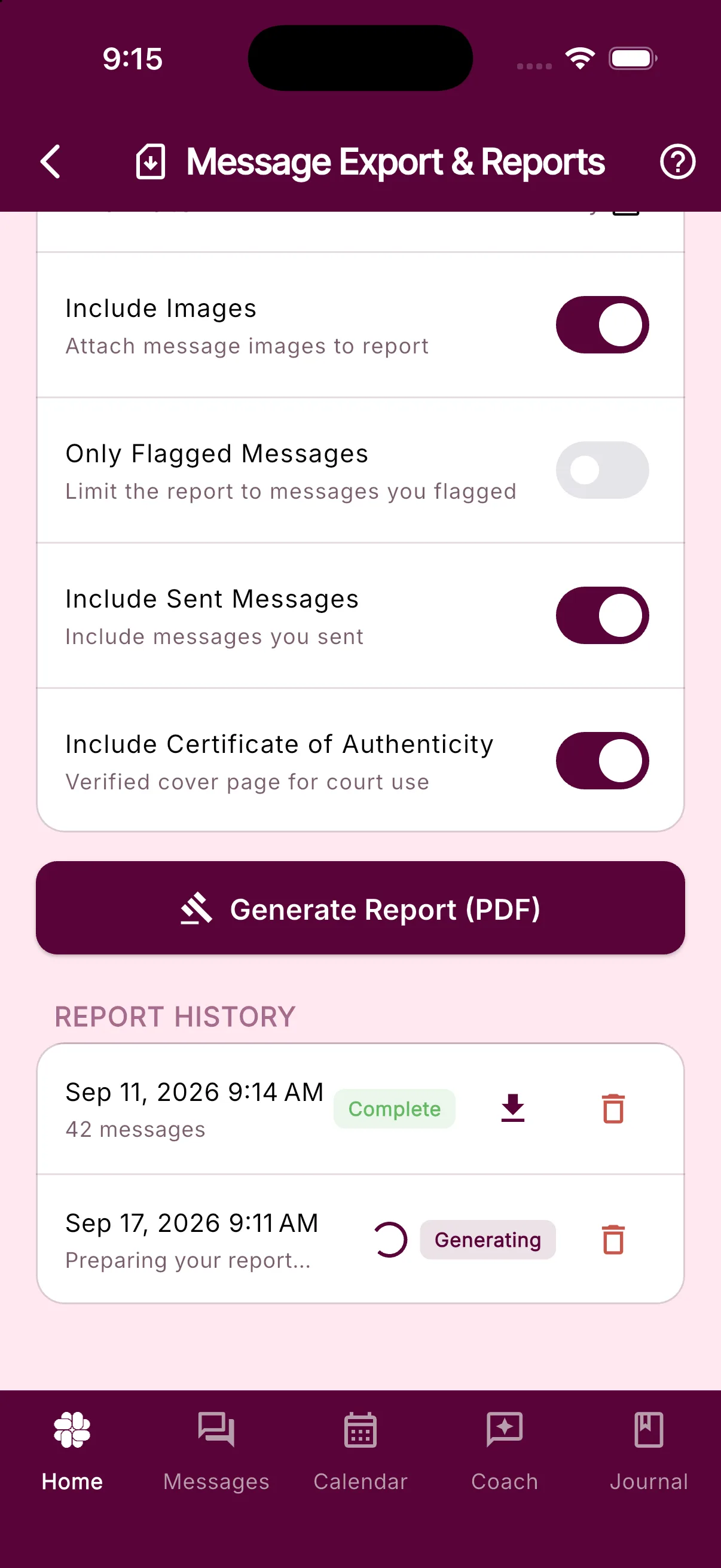
- Generating means the report is still being prepared.
- Complete means the download button should be available.
- Failed means the report could not be generated; the row may show a more specific reason.
Check Report History on the same report screen where you created an eligible PDF report. PDFs are generated in the background and appear there when they are ready.
The history updates automatically. If a row still seems stuck, close and reopen the screen. Avoid repeatedly generating the same report while one copy is still processing.
If Your Report or Export Will Not Download
If a complete report shows Download failed:
- Confirm that the device has a working internet connection and available storage.
- Try the download button again once.
- Make sure the device allows BestInterest to open the system share or save dialog.
- Restart the app and return to Report History.
CSV data exports normally open the device’s share sheet after generation. If the share sheet closes or fails, generate the export again after checking connectivity and available storage.
Still Having Issues?
Contact support and include the export type, selected date range, approximate generation time, displayed status or error, device type, and app version. Support may be able to determine whether a completed file already exists even when the device could not download it.
Related Articles
Was this helpful?
Still need help?
Contact Support